Lock Screen
This page explains the lock screen types in the MonitorDog Agent.
The MonitorDog Agent protects devices through various lock screen types. Whether locking is enabled and which lock type is used can be flexibly configured by an administrator in MonitorDog Admin.
Event Lock Screen
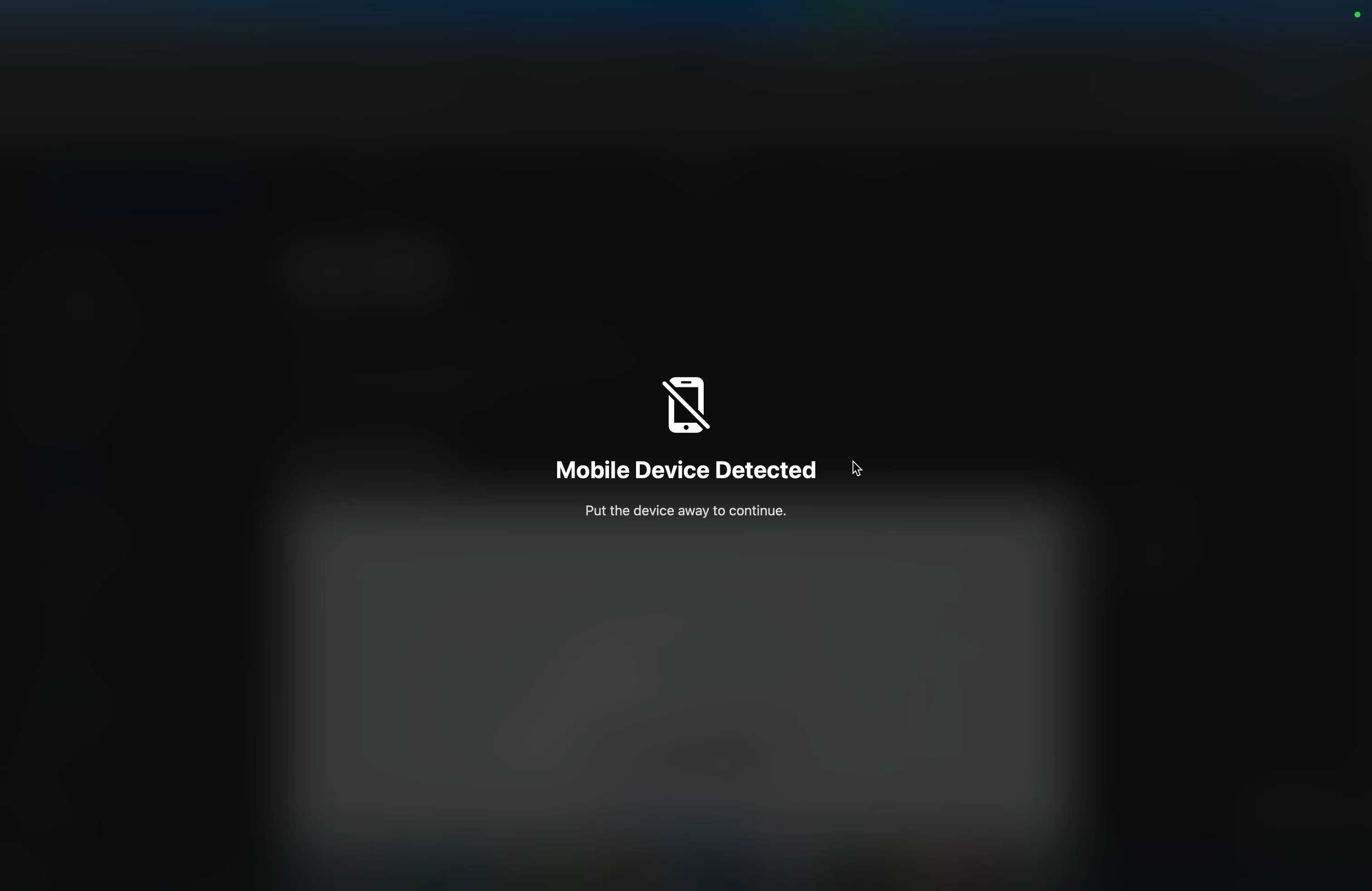
This lock screen is automatically activated when an event occurs.
- Activation point: Activated the moment an event is first detected.
- Duration: Remains active until the event is no longer detected.
- Unlock method:
- Automatically deactivates when the event is no longer detected.
Suspicious Activity and Remote Lock - User Can Unlock Directly
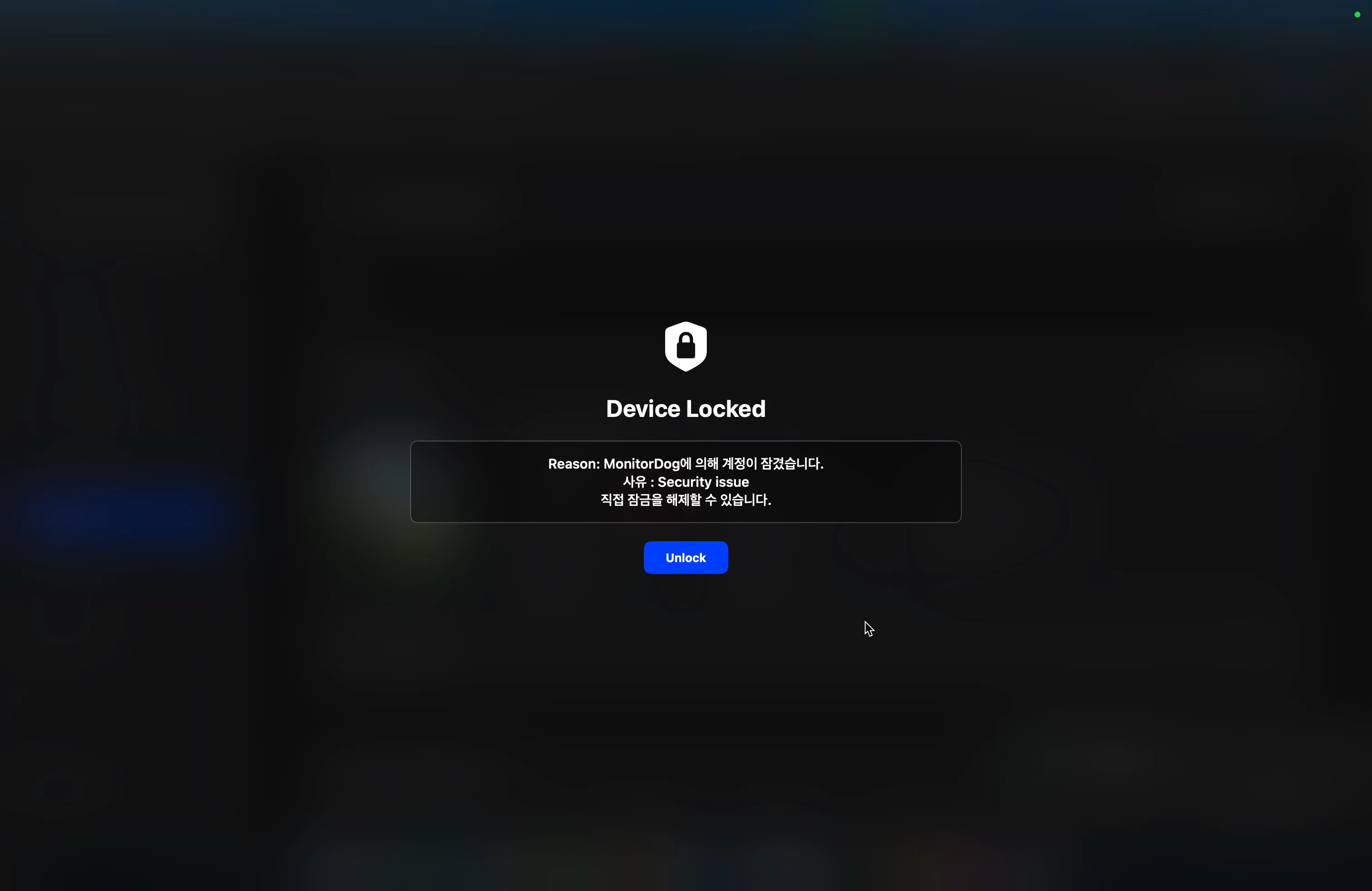
This lock screen is activated when suspicious activity occurs according to a preset scenario or when Remote Lock is applied by an administrator.
- Activation point: When suspicious activity is detected or an administrator applies a lock.
- Lock type: The lock type configured in MonitorDog Admin is applied.
- Unlock method: The user can unlock it directly by pressing the unlock button. Administrator approval is not required.
Suspicious Activity and Remote Lock - Unlock After Administrator Approval
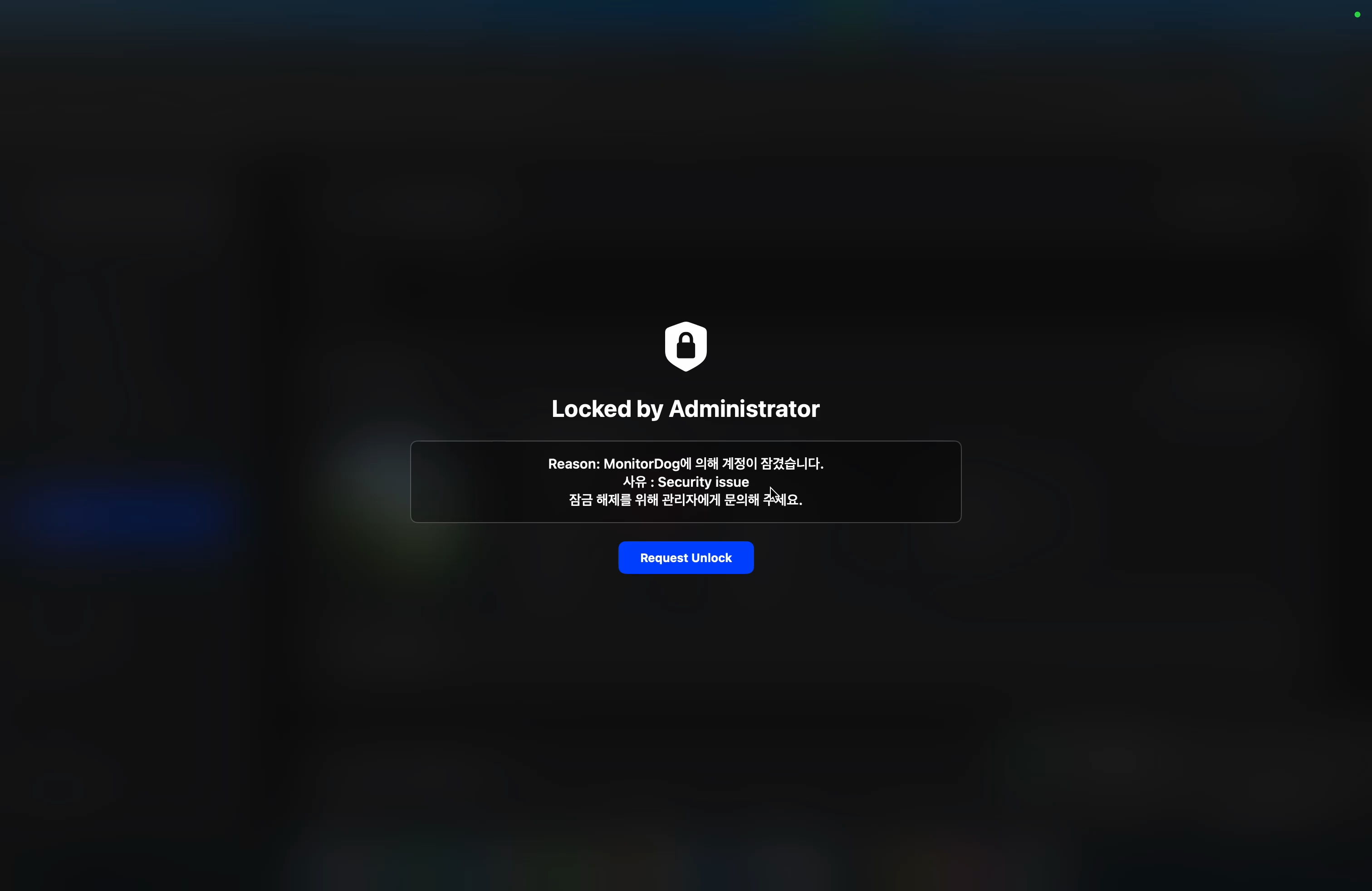
This lock screen is also activated when suspicious activity occurs or Remote Lock is applied by an administrator, but the unlock procedure is different.
- Activation point: When suspicious activity is detected or an administrator applies a lock.
- Lock type: The lock type configured in MonitorDog Admin is applied.
- Unlock method:
- The user must click the unlock request button to request unlocking from an administrator.
- This request is sent to the administrator through MonitorDog Admin.
- The lock is finally released only after the administrator unlocks the user.
Password Input
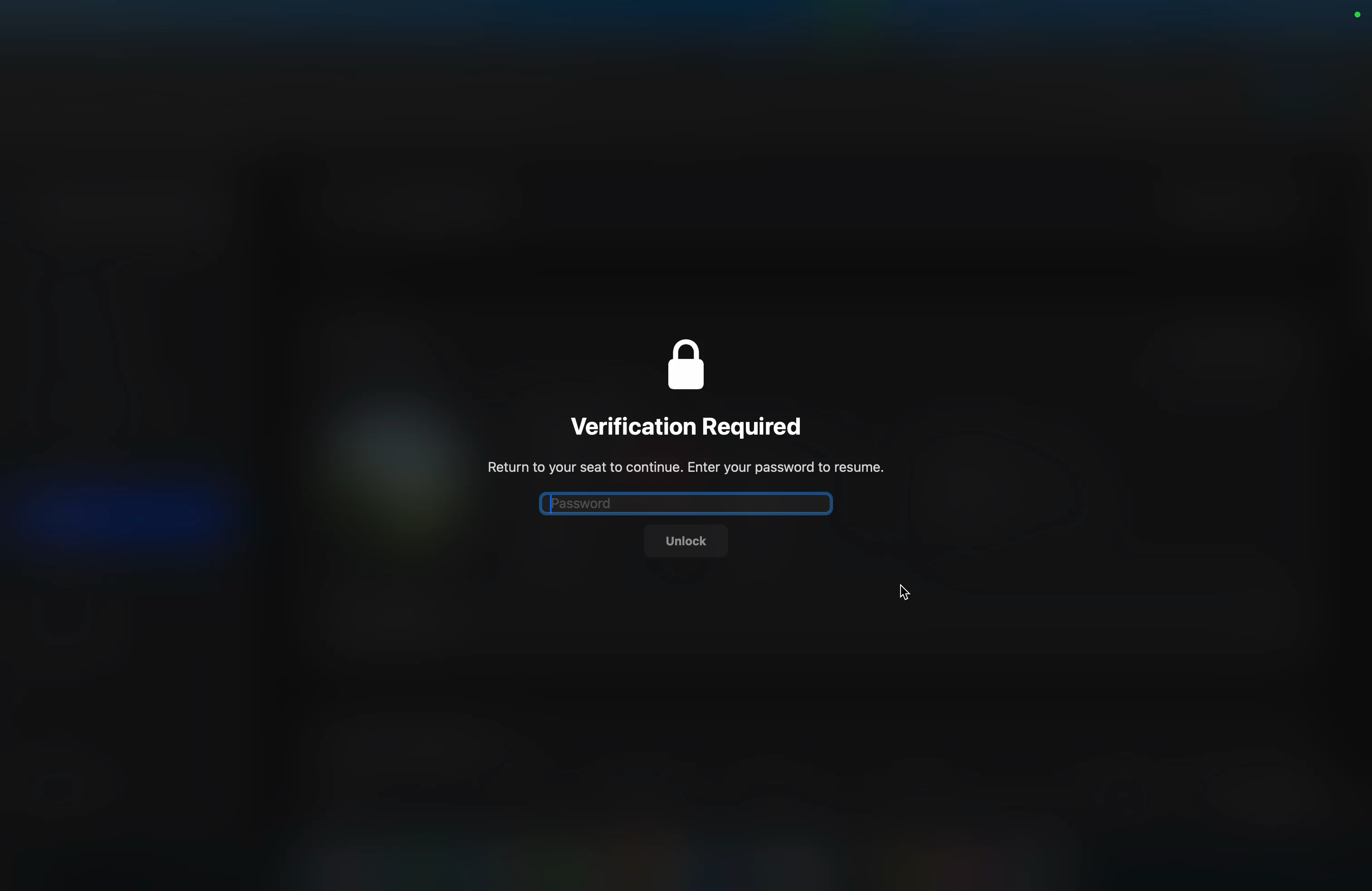
This lock screen is activated especially when a No Person event occurs.
- Activation condition: This lock is activated only when the Away unlock password option is enabled in MonitorDog Admin.
- When the option is disabled: The general lock screen is activated.
- Unlock method: The user can unlock by entering the account password.
- Unlock restriction:
- If the password is entered incorrectly 5 times in a row, a 30-minute unlock restriction is applied.
- Administrators can reset the user's restriction time in MonitorDog Admin. However, the restriction time may remain due to system-related factors even after administrator reset.