User
This page explains each element of the MonitorDog User Table and the features of the User Detail Page.
You can view and manage the list of users, along with their related suspicious activities and event history.
User Table
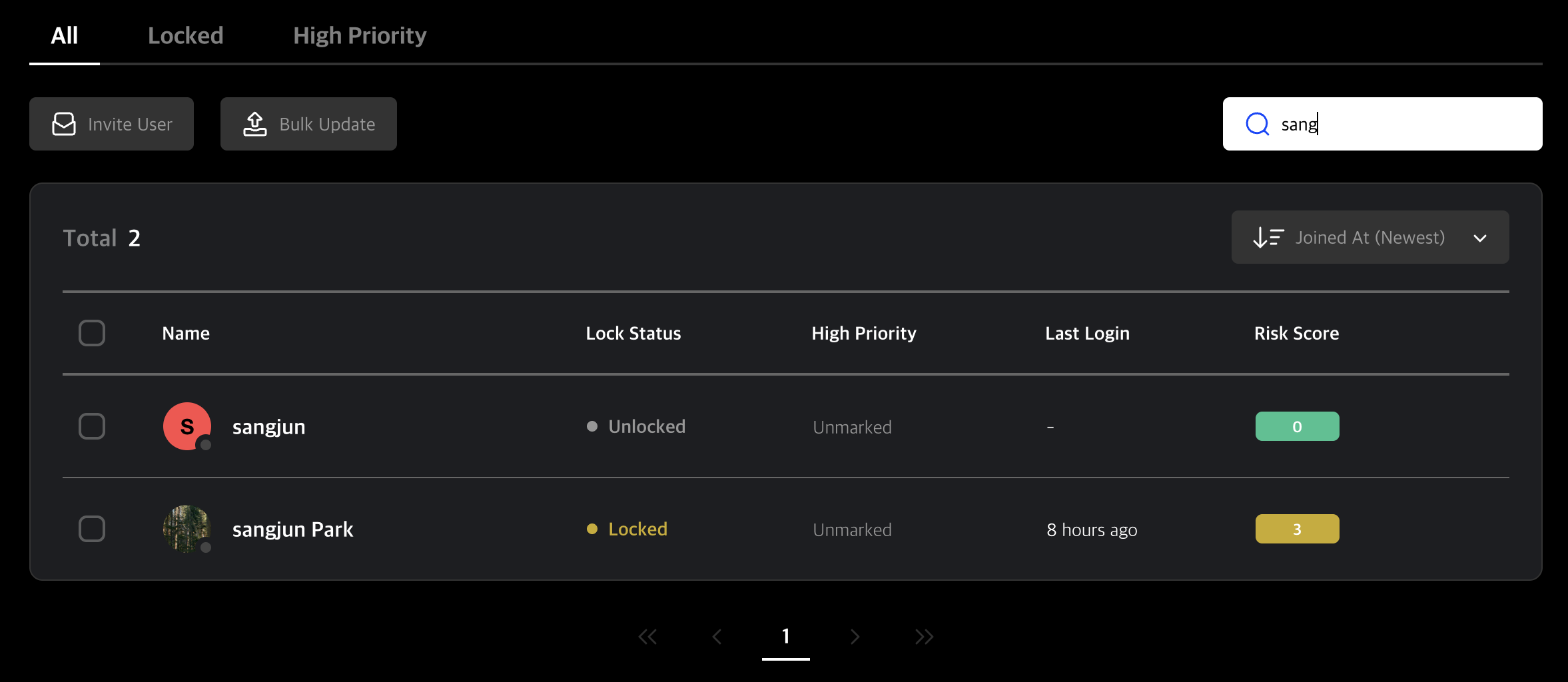
Users are listed in order of registration date. Each row also includes user status and information.
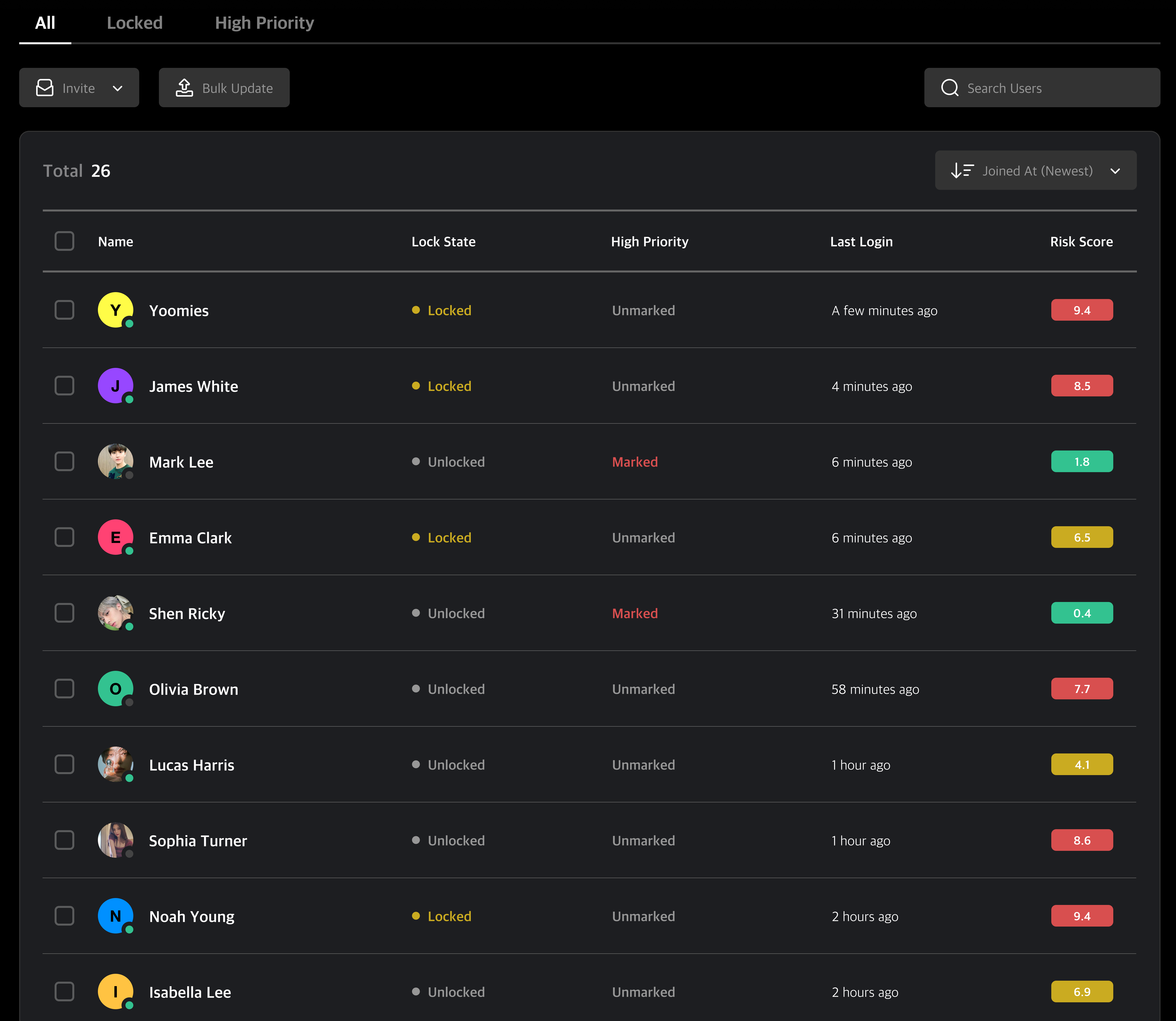
Table Tabs
Click the tabs at the top to filter users by their current status.
Tab Descriptions
- All: View all users.
- Locked: View users whose devices are currently locked by MonitorDog.
- High Priority: View users marked as high priority for closer monitoring.
Invite & Bulk Update
-
Invite
You can select an invitation type and enter an email address to send an invitation email. A signup link will be delivered via email.
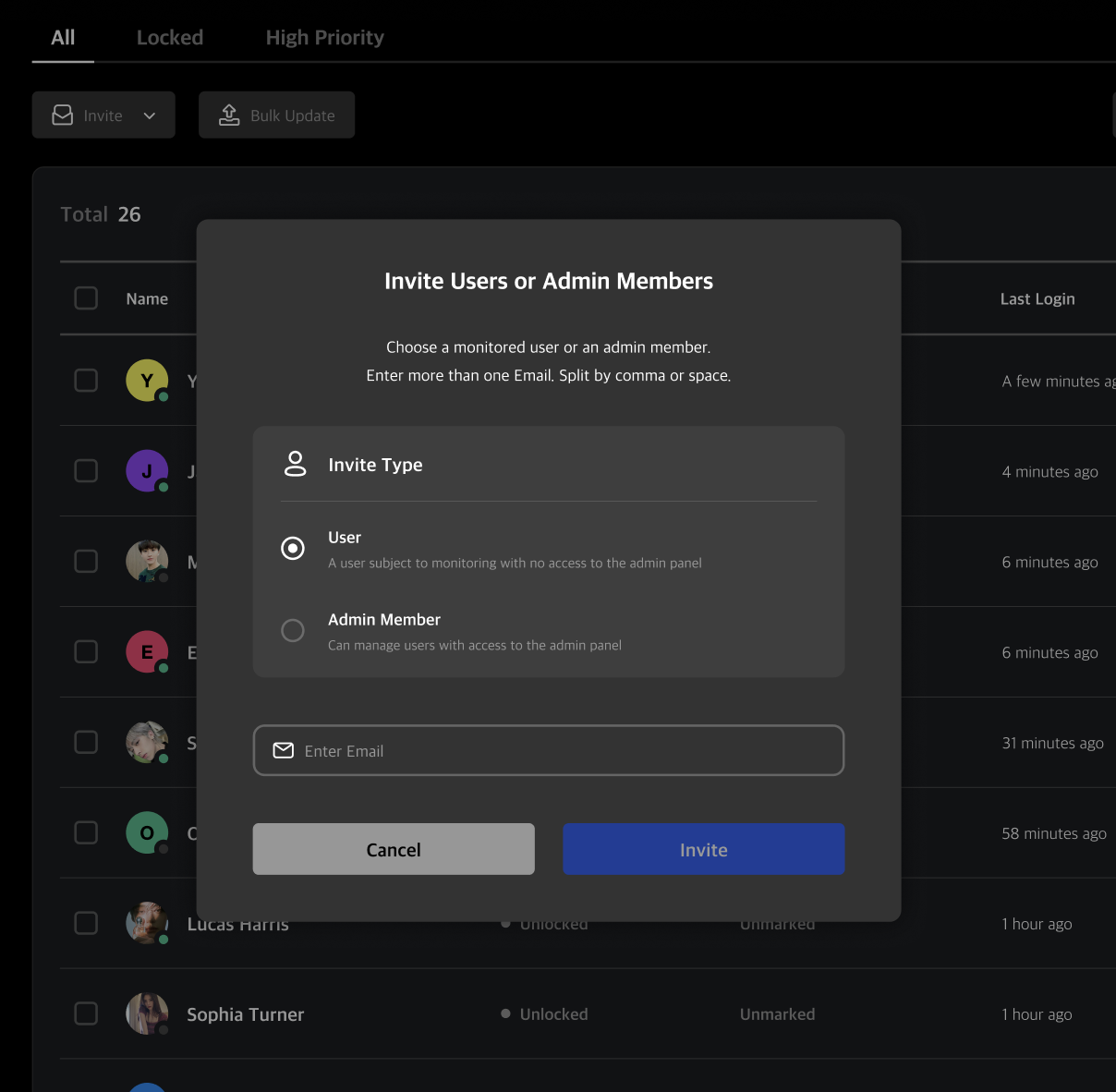
Q. What’s the difference between a regular user and an admin user?
A. Regular users have limited access to MonitorDog's admin features and pages, while admin users can access all admin functionalities and pages. If you want to change a regular user to an admin later, adjust their permission level to Viewer or higher to grant admin access.
-
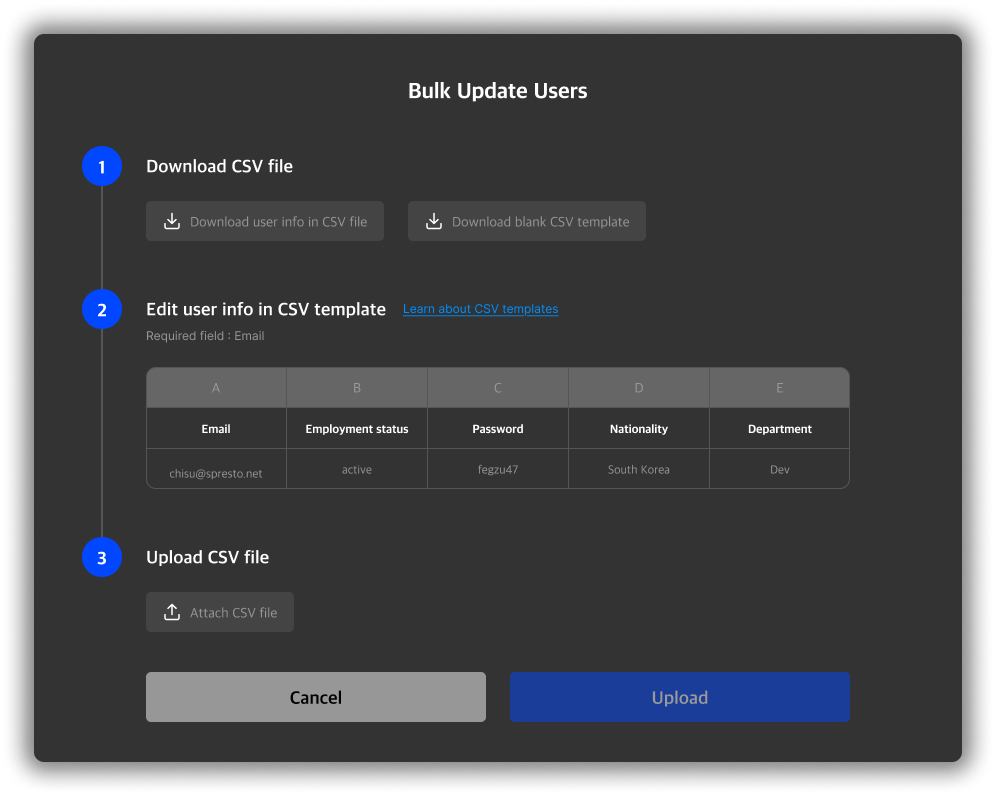
Bulk Update
Download a CSV file to batch update user information and re-upload to apply changes.
Q. When should I use this?
A. Bulk updates are useful when modifying user attributes like department or nationality for multiple users at once.
Search
Use the search bar to find users whose name or email matches the search term.
Q. What fields are used for search?
A. Both name and registered email address are used in the search criteria.
Quick User Actions
You can manage users directly from the user table without navigating to each user's detail page. Simply select the users you want to manage from the table and click the action buttons at the top of the table. The following actions are available:
- Delete User: Remove the selected user(s) from the system.
- Mark as High Priority: Set the selected user(s) as a high priority monitoring target.
- Lock/Unlock User: If a user is currently locked, you can unlock them, and vice versa.
- Custom Detection Rules: Configure webcam detection rules for the selected user(s).
- No Person Detection Rules: Configure no-person detection rules for the selected user(s).
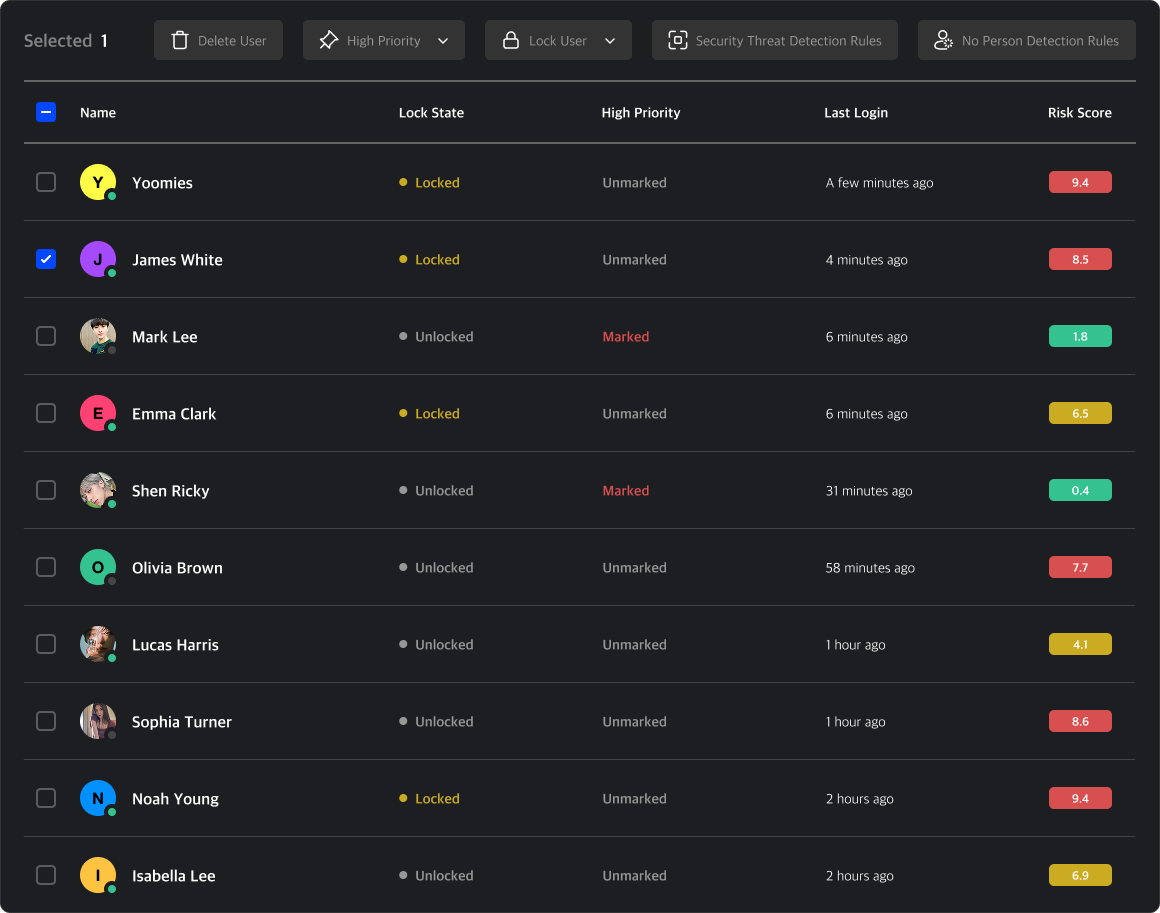
When multiple users are selected, the same action will be applied to all of them. This is useful when you need to apply the same configuration to several users at once.
Q. Why do the detection settings sometimes look different from the actual user detection configuration?
A. The actual detection policy is displayed only when a single user is selected. When selecting two or more users, unified options are shown instead, and all settings appear inactive since each user may have different policies.
User Detail Page
Clicking a user row opens their User Detail Page, where you can view and edit user details, suspicious activities, and events.
Manage User
This menu allows you to configure settings related to the user, such as personal settings, permissions, and rule configurations.
Note: These changes apply immediately and should only be used when necessary.
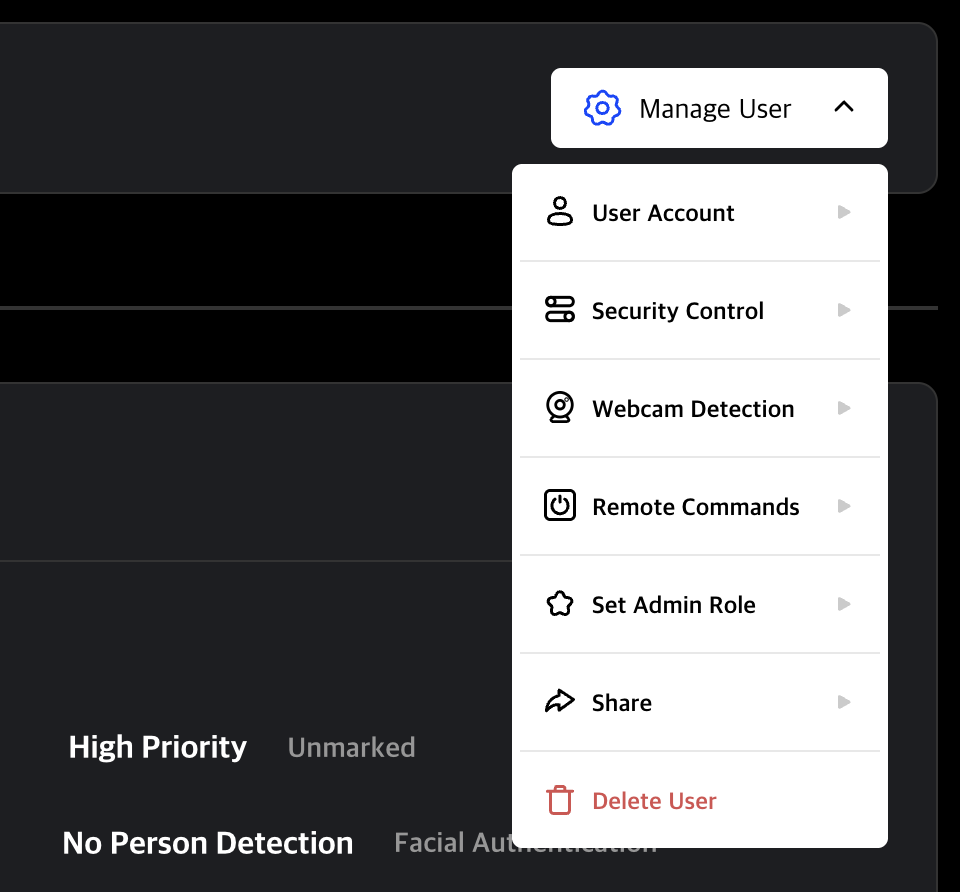
User Account Settings
- Start Security Audit Access: Conduct a security audit for the user.
- Lock/Unlock User: Toggle lock status. If currently unlocked, specify reason and lock type to apply a Remote Lock. If the no-person password is entered incorrectly 5 or more times consecutively, this button releases the password-entry time restriction.
- Mark as High Priority: Set or unset the user as a high priority monitoring target. This does not directly restrict the user.
- Enable MFA: Toggle MFA.
- Reset Password: Reset the user's password.
Security Control Settings
- Blocked Program Control: Configure the user's blocked programs.
- Capture Rules: Configure the user's capture control rules.
- Storage Device Control Rules: Configure the user's device control rules.
Webcam Detection Settings
- Custom Detection Rules: Configure the user's detection rules. They take priority over the organization's default detection rules.
- No Person Detection Rules: Configure the user's no person event. These take priority over organization rules for event control.
- Facial Authentication: Configure the user's facial authentication rules. These take priority over organization rules for detailed monitoring.
Remote Commands
- Force Close PC Program: Force close the user's MonitorDog Agent remotely.
- Restart PC Program: Restart the user's MonitorDog Agent remotely.
- Shut Down System: Shut down the user's device remotely.
- Restart System: Restart the user's device remotely.
Q. If I issue a remote system shutdown command, will it shut down immediately?
A. When the remote shutdown command is executed, a shutdown notification popup is immediately displayed on the user's screen. The system shuts down 10 seconds after the notification message appears, so please save any work in progress promptly to avoid data loss.
Admin Role Settings
This feature is only available to administrators with Manager rank or higher.
To make someone an admin, set their role to Viewer or higher. They will be included in the Admin Members page. To remove admin access, set their role to Limited.
Admin Role Details
| Role | Description |
|---|---|
| Owner | Full access to all features and settings. |
| Manager | Can manage events, scenarios, users, organization, and blocked programs (includes Editor role). |
| Editor | Can modify user info and scenarios (includes Viewer role). |
| Viewer | Can view organization data (includes Limited role). |
| Limited | Can only view content without making changes. |
Q. I can’t change user roles!
A. Permission changes can only be made to roles lower than your own. You cannot promote yourself to a higher role. If you require a higher permission level, please contact an administrator with the appropriate authority.
Sharing
- Copy Link: Save the current page URL to the clipboard.
- Send to Member: Share the current user with another administrator.
Delete User
- Delete User: Delete the user.
User Information
View user profile and account-related information for MonitorDog.
Q. I don’t see an edit button—how can I update user info?
A. Only Editor or higher admins can edit user info.
If you're editing your own info, go to My Page.
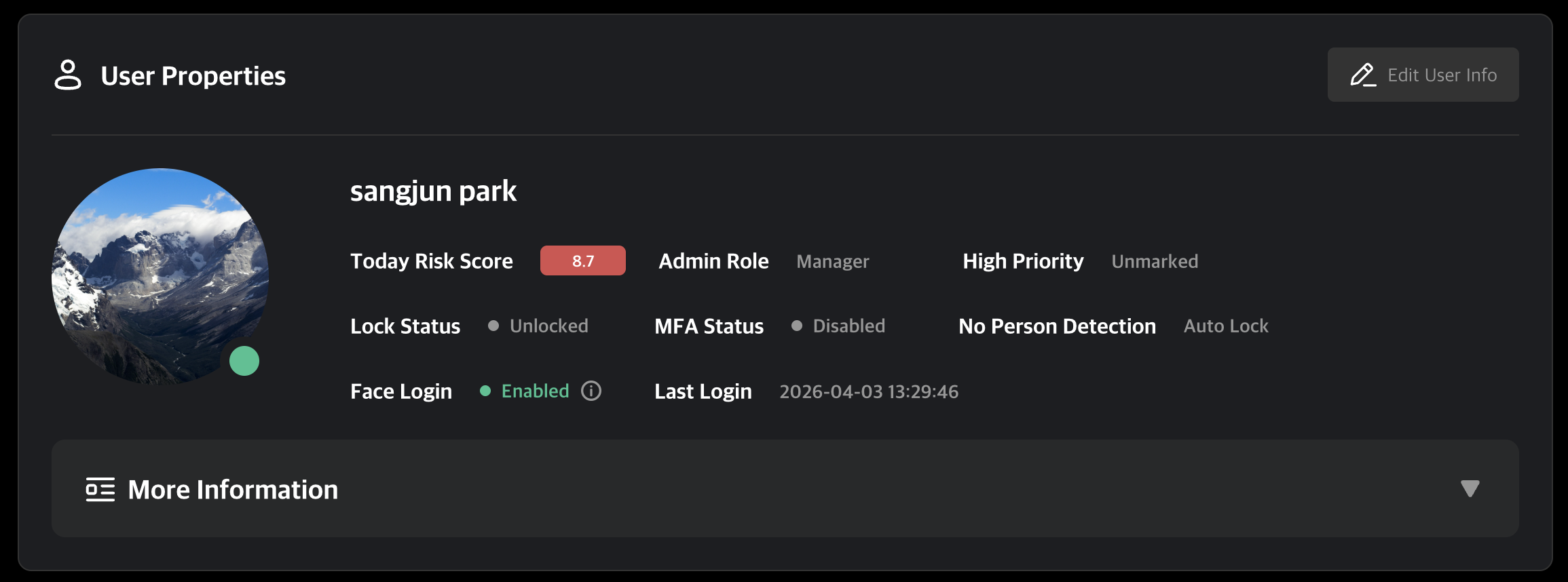
Information Breakdown
- Today Risk Score: A risk score from 0.0 to 9.9 calculated based on internal MonitorDog policy. It resets at midnight each day.
- Admin Role: One of five roles, each with different levels of access.
- High Priority: Indicates a user designated for focused monitoring. It does not apply any direct restriction.
- Lock Status: Shows whether the MonitorDog Agent is currently locked. It is marked as locked when Event Lock or Remote Lock is active or when the no-person password has been entered incorrectly five times in a row.
- MFA Status: Indicates whether MFA is off or enabled.
- No Person Detection: The no-person detection policy currently applied to the user.
- Face Login: The facial authentication policy currently applied to the user.
- Recent Login: The user's latest login time.
-
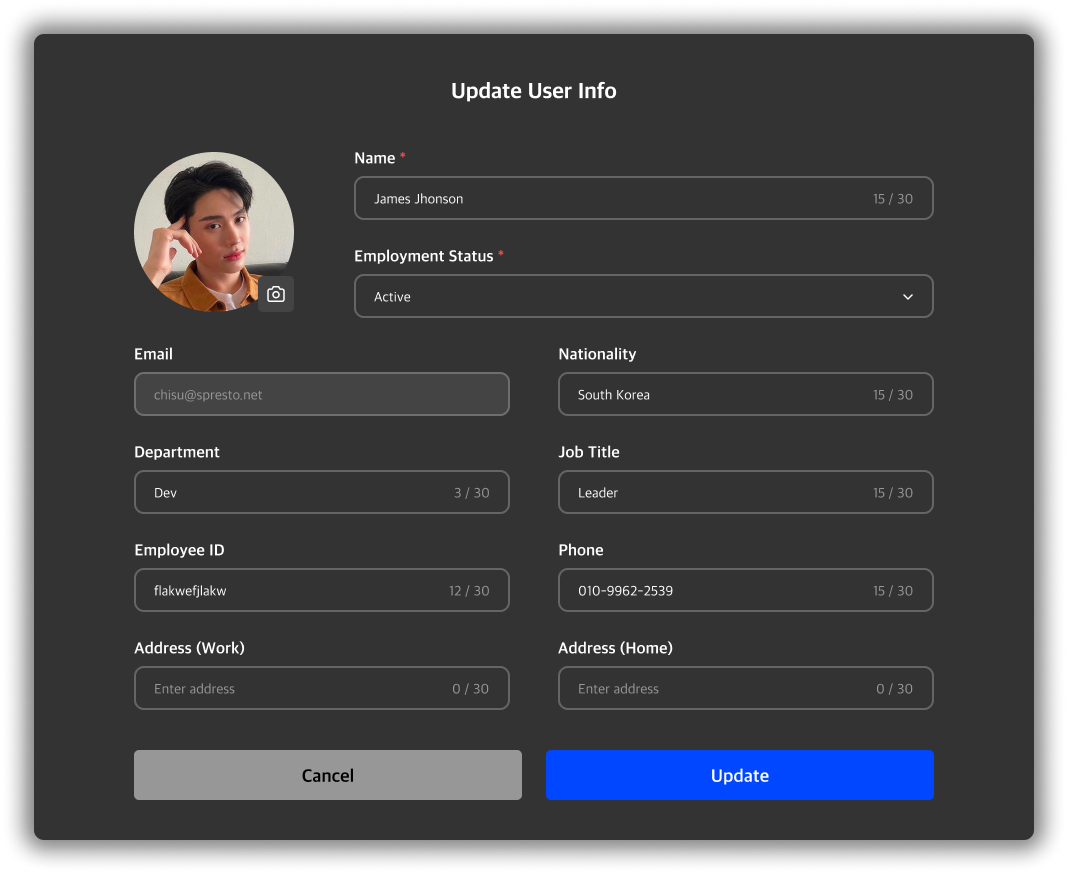
Edit User Info
Modify user profile details.
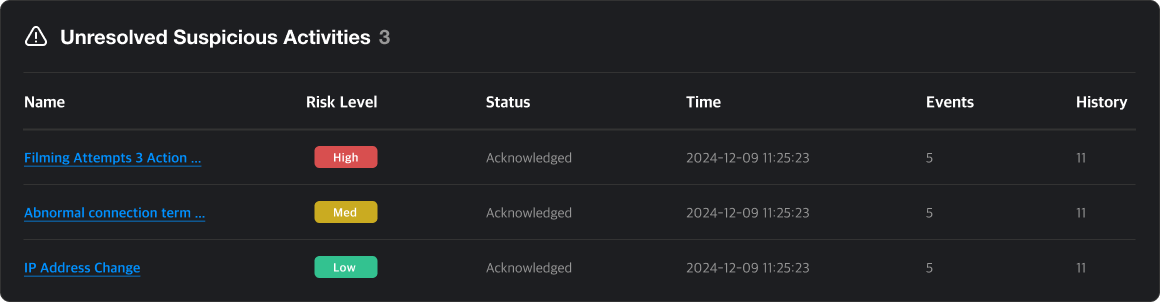
Suspicious Activity List
Shows unresolved suspicious activities for the user. Click an item to view the Suspicious Activity Detail Page.
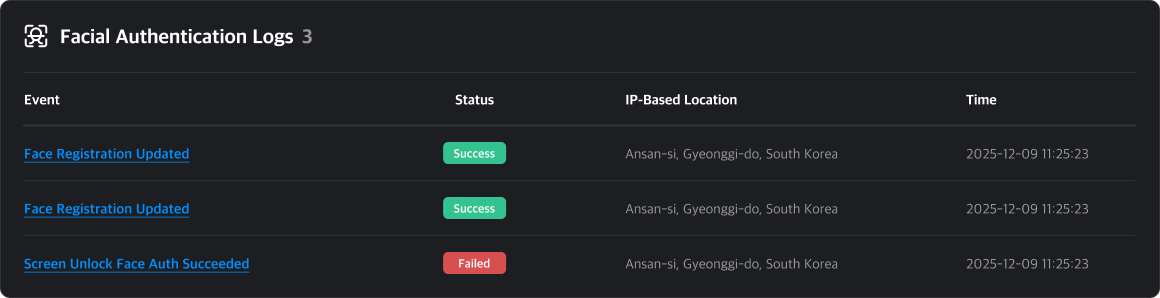
Facial Authentication Log List
A list of facial authentication logs occurred for this user. You can check Face Unlock, Face Login events and success status. Click on the title to navigate to the Event Detail Page.
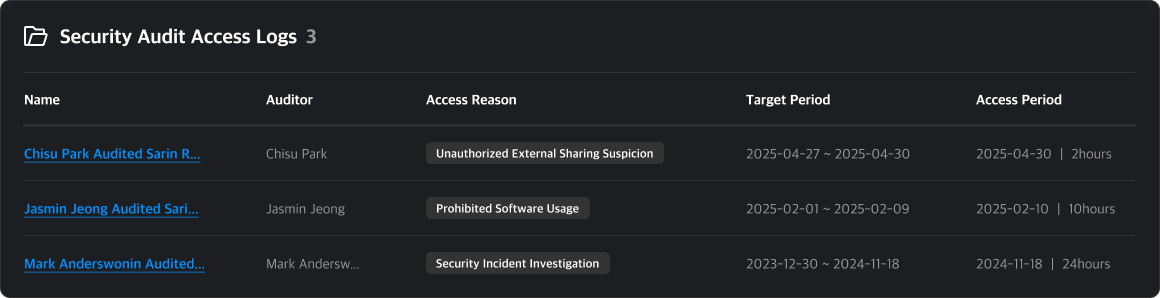
Security Audit List
This is a list of security audits conducted by administrators. You can view brief information such as the audit initiator and the reason for the audit. Click on the audit title to navigate to the Security Audit Detail Page.
Event List
Shows user activity during a selected date range. You can view a graph of detected events and risk scores, and click a specific date to inspect details.
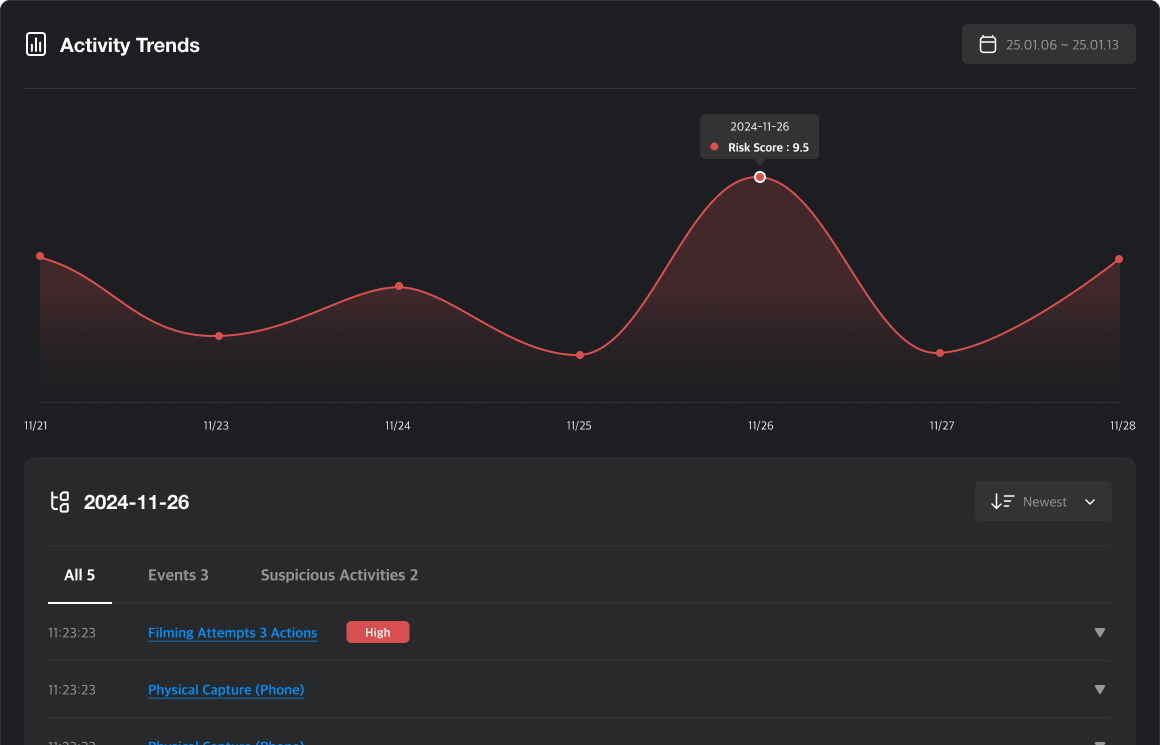
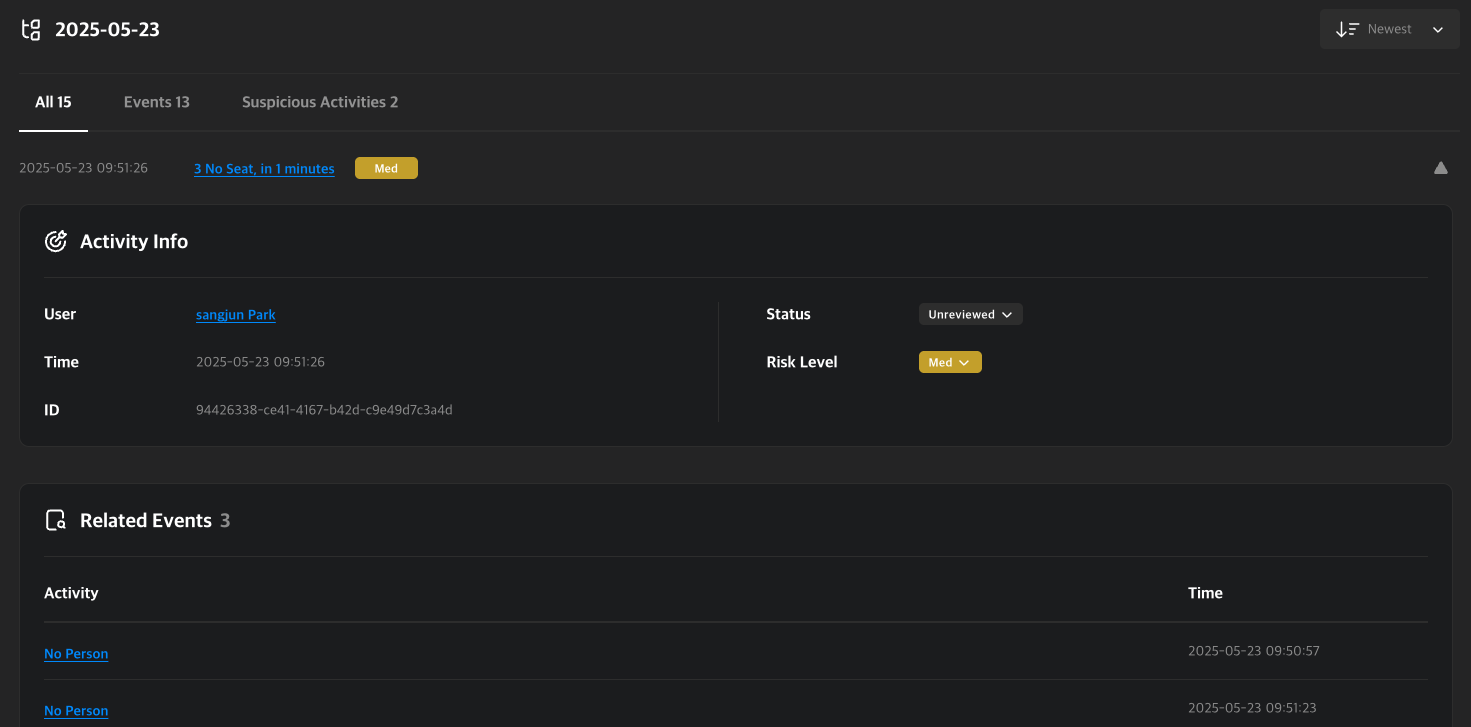
Tabs
- All: View all activity.
- Events: View event history.
- Suspicious Activities: View suspicious activities only.
You can access the detail pages for any event or suspicious activity by clicking their names.
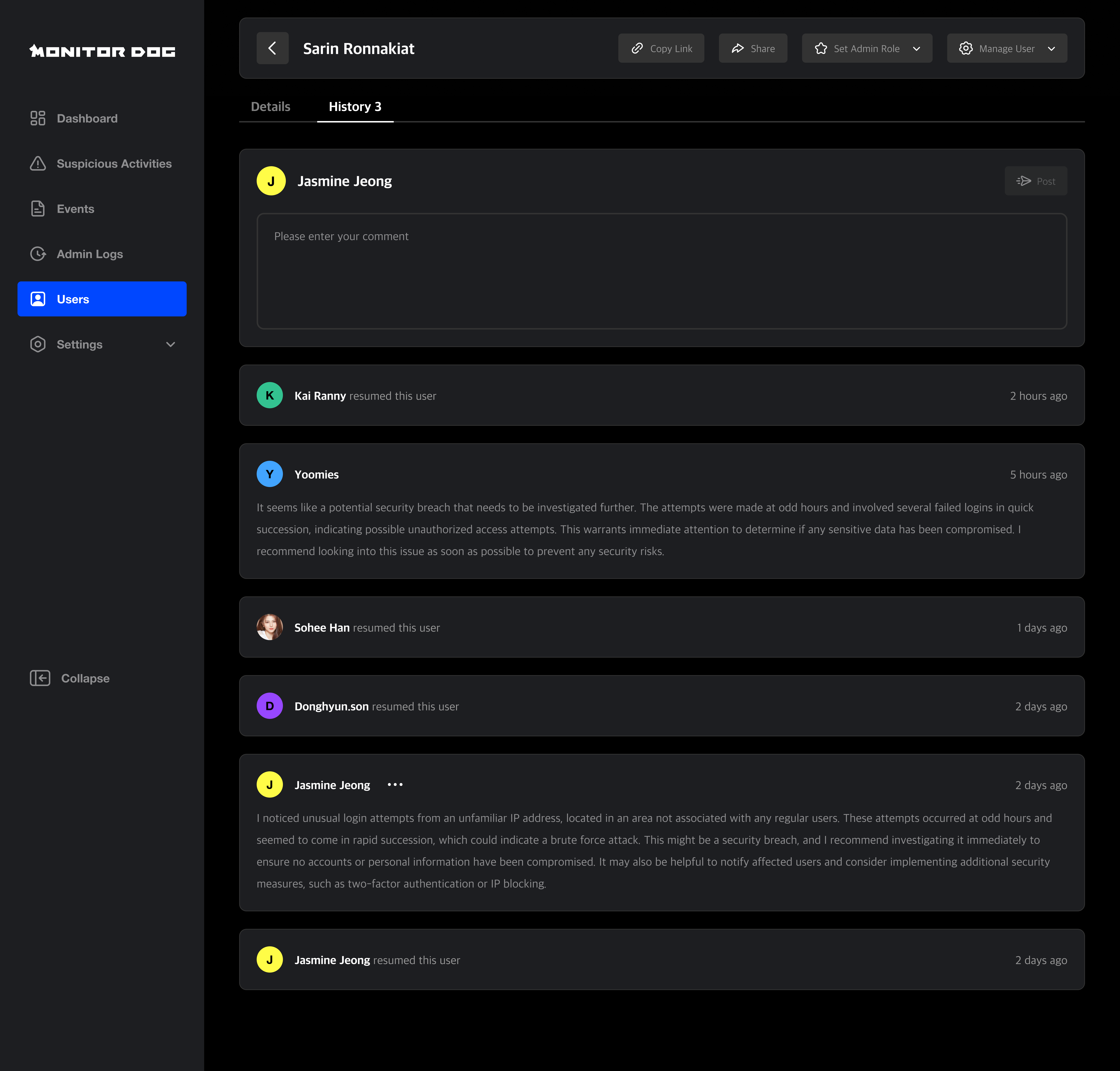
History
This section logs admin actions and changes related to the user.
Q. When is history created?
A. History is logged when suspicious activities are generated or when an admin takes action on the user. Admins can also leave comments manually to record context or instructions.