Capture Control Logs
This page describes each element of the Capture Control Log data table and the available features on the detail page.
Through the Capture logging feature of the MonitorDog Agent, capture events and programs occurring on the user's device are monitored and recorded.
All recorded logs can be viewed on this page.
MonitorDog detects two types of events: keyboard-based capture and capture software. When an event is detected, the capture action or program execution is blocked, and logs are recorded according to the policies configured at the organization and user levels.
Q. How are capture commands and capture programs managed?
A. Capture commands are controlled based on a predefined list managed by the MonitorDog team. Capture programs are controlled based on the programs registered by MonitorDog, as well as additional programs manually added by administrators.
If you would like to add a new capture command, please contact the MonitorDog team. To add a capture program, go to [Settings → Unapproved Software → New Blocked Request].
Log Table
You can review all recorded logs. Each row includes one screen capture and one webcam image, along with brief log information.
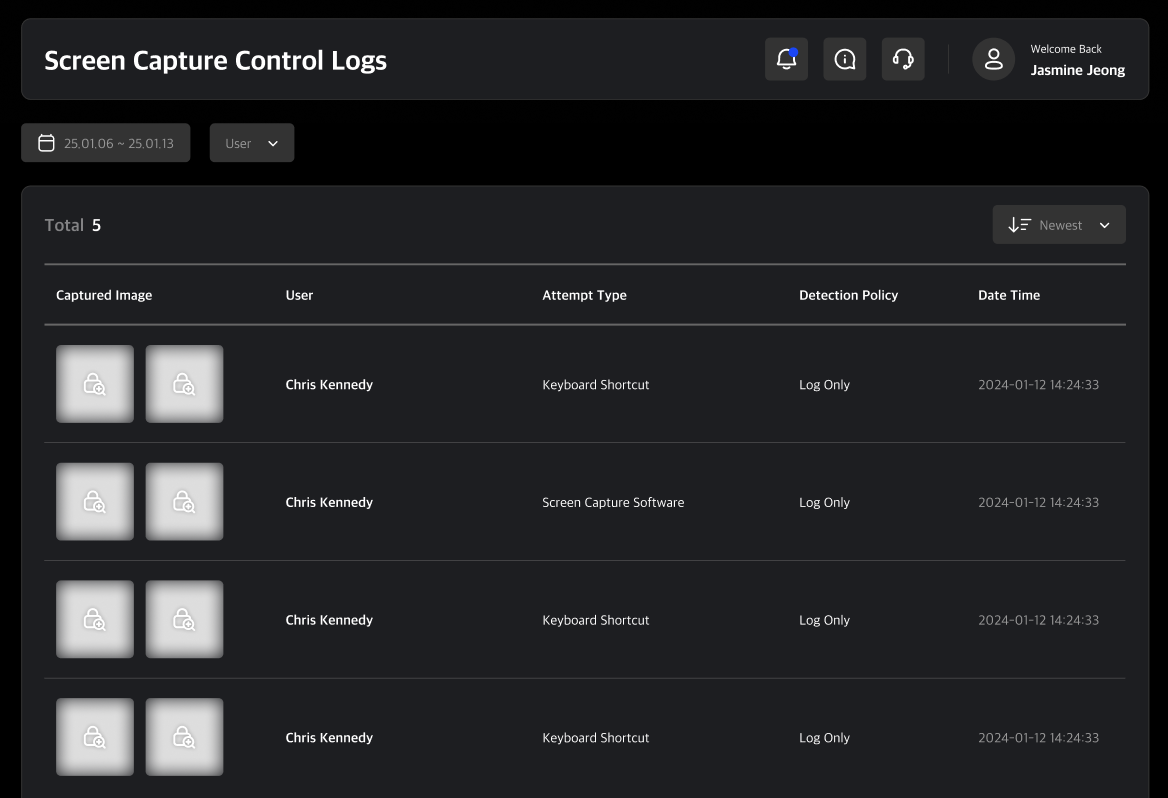
Table Filters
Use the filters at the top of the table to narrow down the list by date range and user.
Filter Features
- Date Range: View logs generated within a specified period.
- User Search: Search logs for a specific user.
Log Detail Page
Clicking a log entry in the file capture log table navigates you to its detail page. On this page, you can review detailed log information and share the event with other administrators.
Attempt Type
Indicates the method the user used to attempt a screen capture. There are two types of capture attempts: keyboard shortcuts and capture software. If the attempt is made using a keyboard shortcut, the specific capture command is displayed. If the attempt is made using capture software, the name of the application is shown.
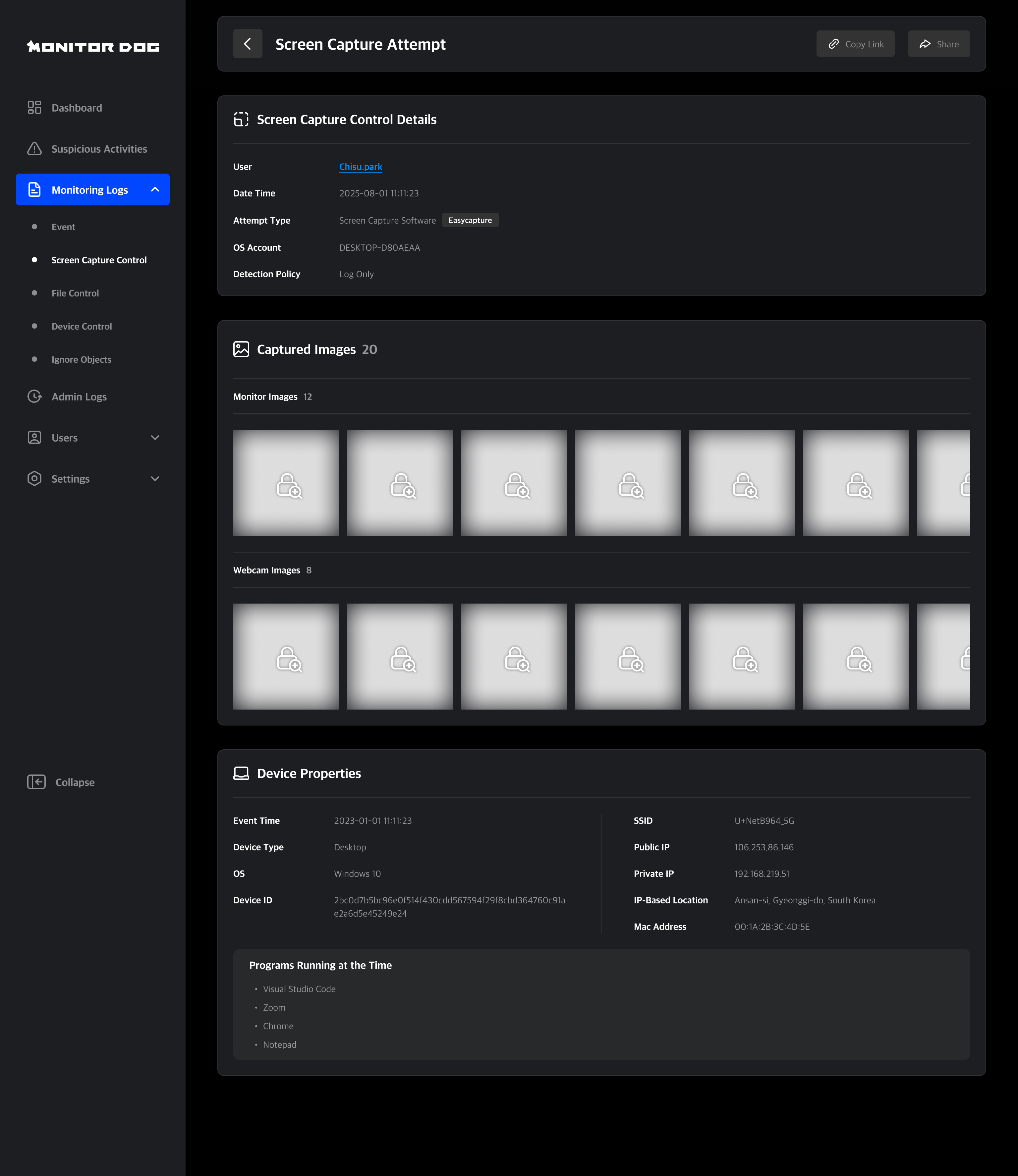
Event Images
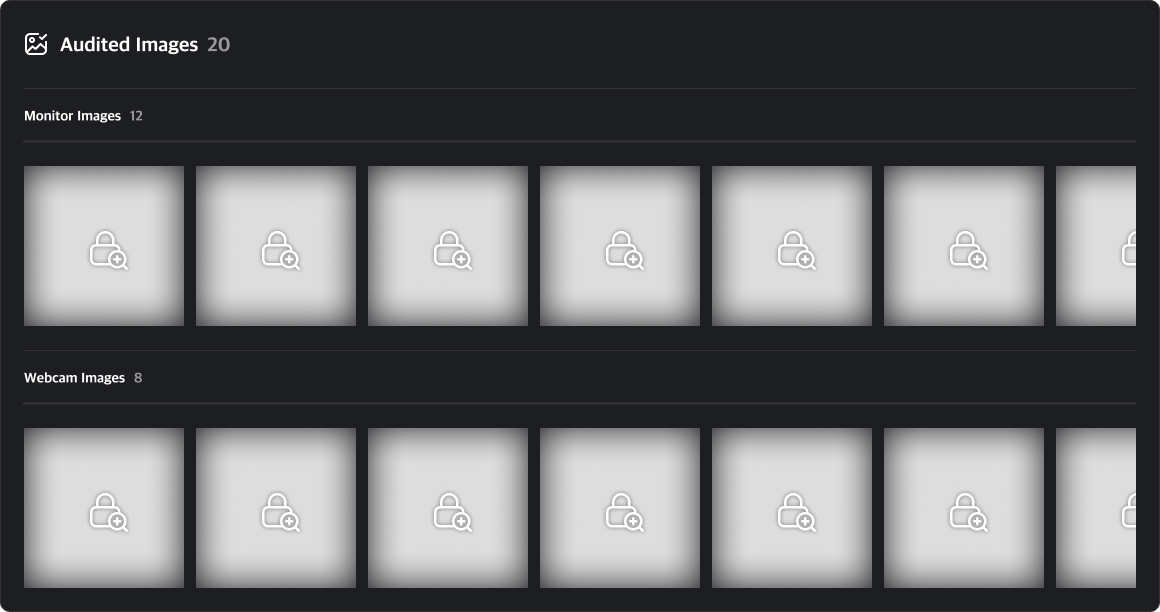
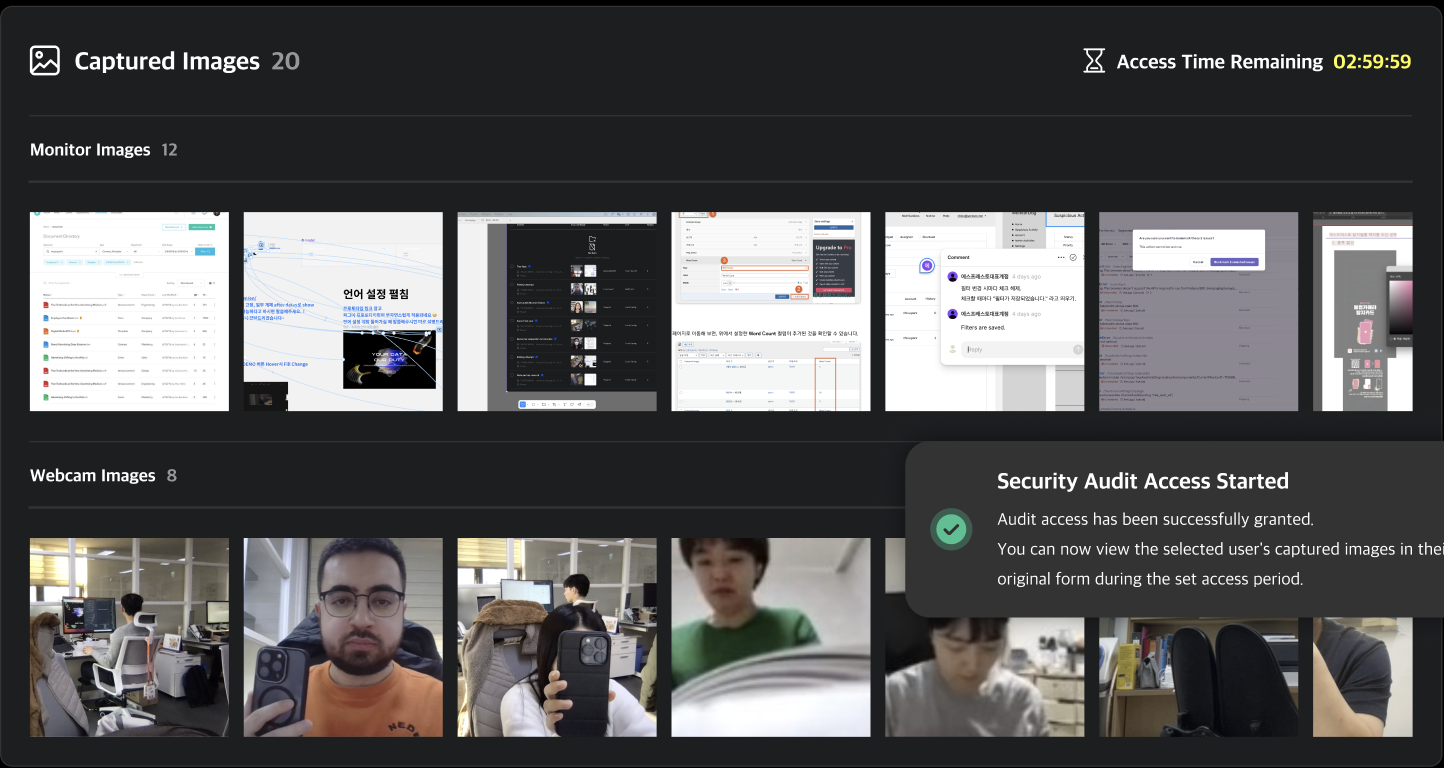
You can view screenshots and webcam images captured at the time of an event. By default, all images are set to private. To view these images, you must submit a Security Audit request.
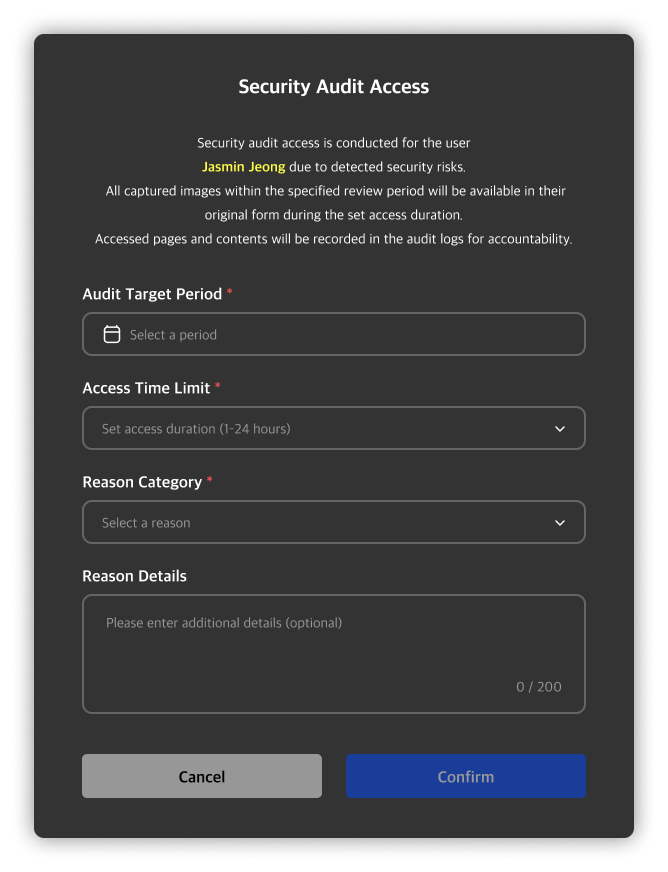
Clicking on a private image will open a security audit request modal. You can start a security audit by entering the target period and audit time along with the reason for the request.
Once the audit begins, a countdown timer will appear at the top right based on the configured audit time, and the images will be made accessible. Any image viewed from the event detail page will be added to the security audit list, and you can review the events and images later via the security audit detail page.
Q. I can’t submit an audit request!
A. Only administrators with Viewer or higher permissions can submit a security audit request. If you want to view the images and proceed with the audit, please contact a higher-level administrator to request a permission change.
Sharing
There are two ways to share an Capture Control Log:
- Copy Link: Useful for sharing outside the system.
- Direct Share: Share with specific admins within MonitorDog.
You can share with multiple users at once. This action generates a notification for recipients.

Delete Log
If the log deletion feature is enabled in the Organization Settings, the log deletion button will be activated.

Q. Can anyone delete logs?
A. Only the Owner tier can enable the log deletion feature. Once enabled, log deletion is restricted to Owner and Manager tiers.
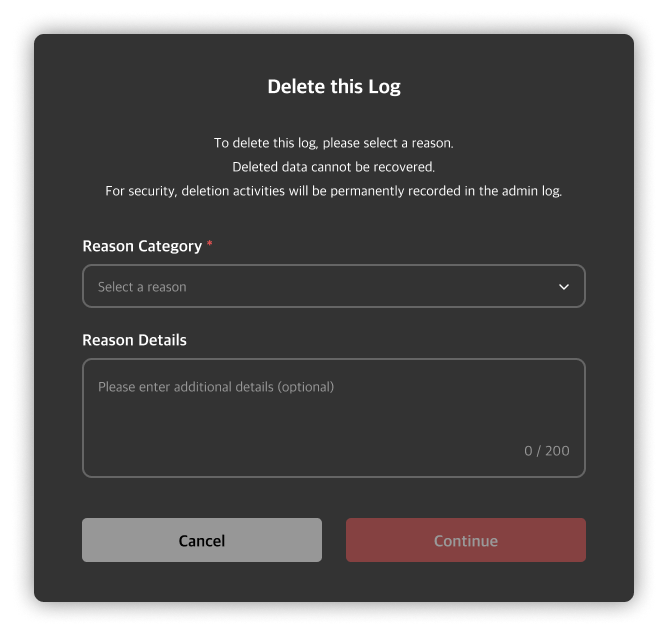
Clicking the log deletion button will open a deletion modal. You must select a reason and provide detailed comments to proceed with the deletion.
Types of Deletion Reasons
- Retention Period Expired
- Personal Data Disposal
- Storage Space Optimization
- Error/Abnormal Log Cleanup
- User Deletion Request
- Others
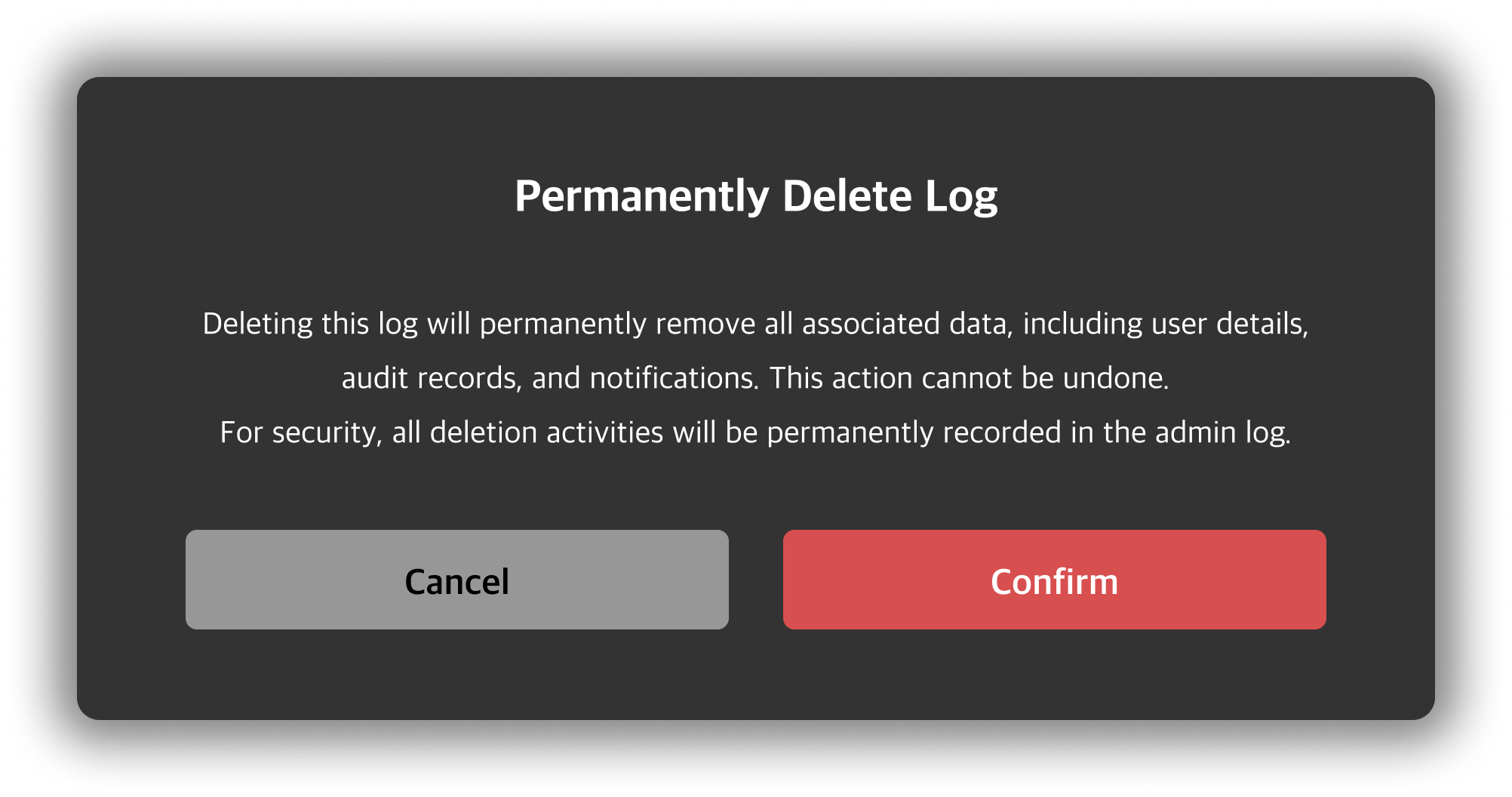
After reviewing the notice in the re-confirmation modal, click the delete button to process the deletion. You will then be redirected to the Capture Control Log table.
Q. Can deleted logs be recovered?
A. Once a log has been deleted, it cannot be recovered. Please be careful to avoid data loss when deleting logs.