Device Control Logs
This page describes each element of the device control log data table and the features available on the detail page.
Through MonitorDog Agent’s device logging feature, device-related events that occur on the user’s machine are monitored and recorded.
All such logs can be reviewed on this page.
Log Table
You can view all recorded logs. The table shows information about the user who triggered the event, the device details, and the type of control action.
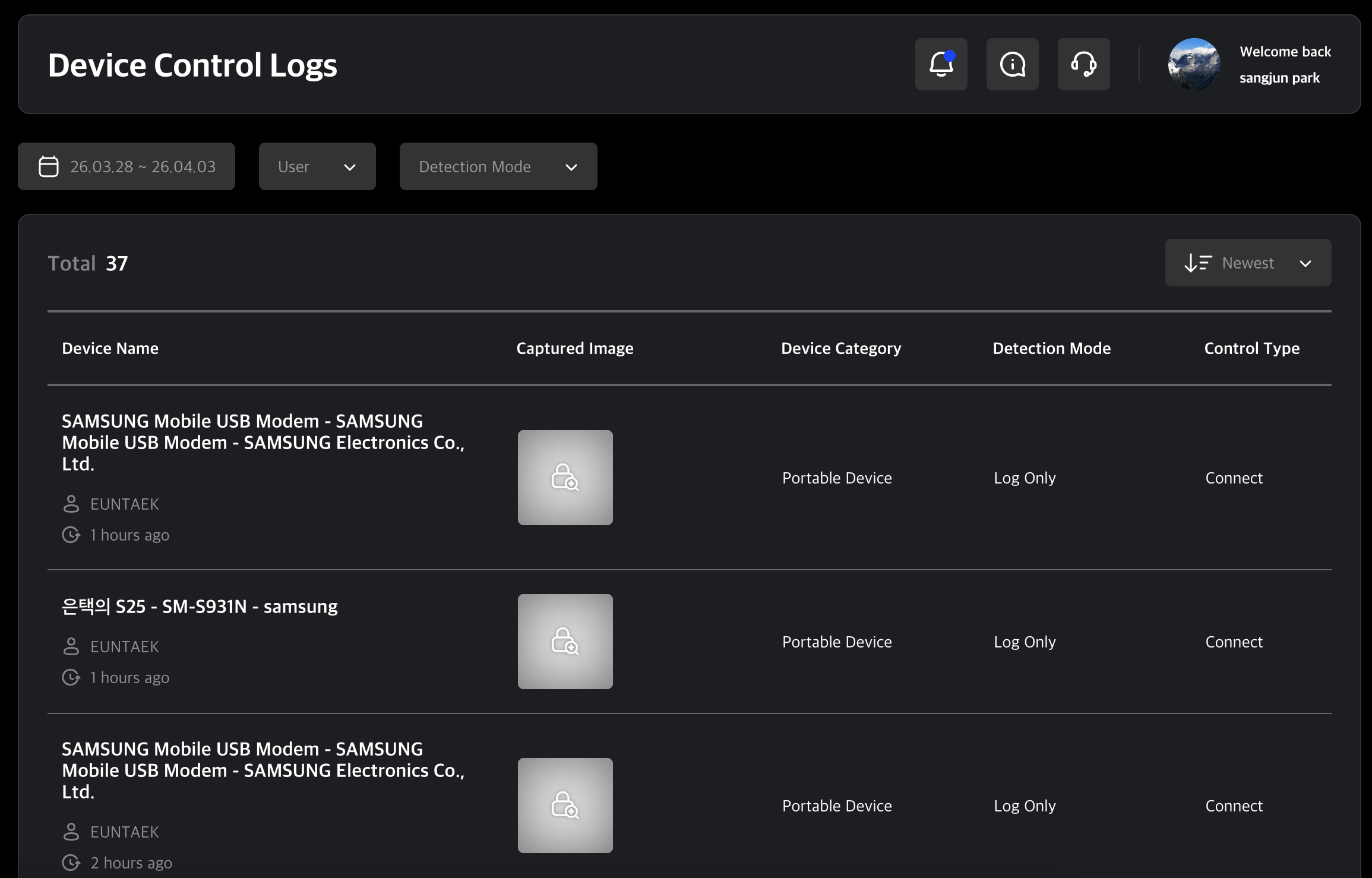
Table Filters
Use the filters at the top of the table to narrow down the list by date range, user, and detection mode.
Filter Features
- Date Range: View logs generated within a specified period.
- User Search: Search logs for a specific user.
- Detection Mode: Filter the list by device control detection mode.
Control Types
- Connect: External device connected
- Disconnect: External device disconnected
Detection Mode
- Log Only: When a device is connected, only the connection and file transfer logs are saved. The screen does not lock.
- Auto Lock – Unlock By Admin: When a device is connected, the screen is automatically locked and a block notification is displayed. The blocked connection is recorded in the log, and the user can request an unlock from an administrator via the lock screen. The lock is released only after the administrator approves this request.
- Auto Lock – Unlock By User: When a device is connected, the screen is automatically locked and a block notification is displayed. The blocked connection is recorded in the log, and the user can unlock it themselves at any time.
- Read Only: When a device is connected, the screen does not lock. File transfer is blocked, but files can still be read.
- No Detection: Detection is disabled. All connections are allowed, no logs are saved, and the screen does not lock.
Log Detail Page
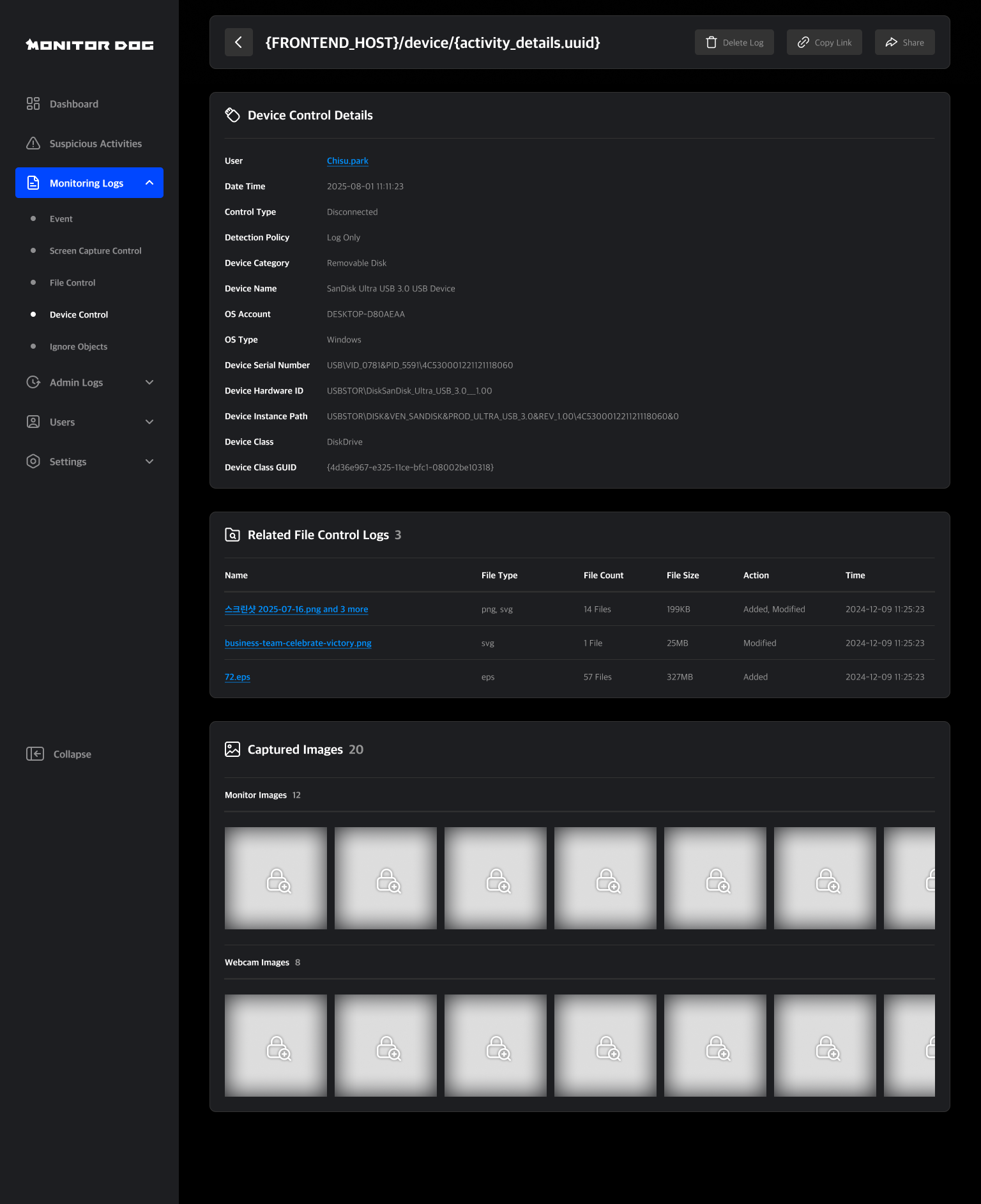
Clicking a log entry opens its detail page.
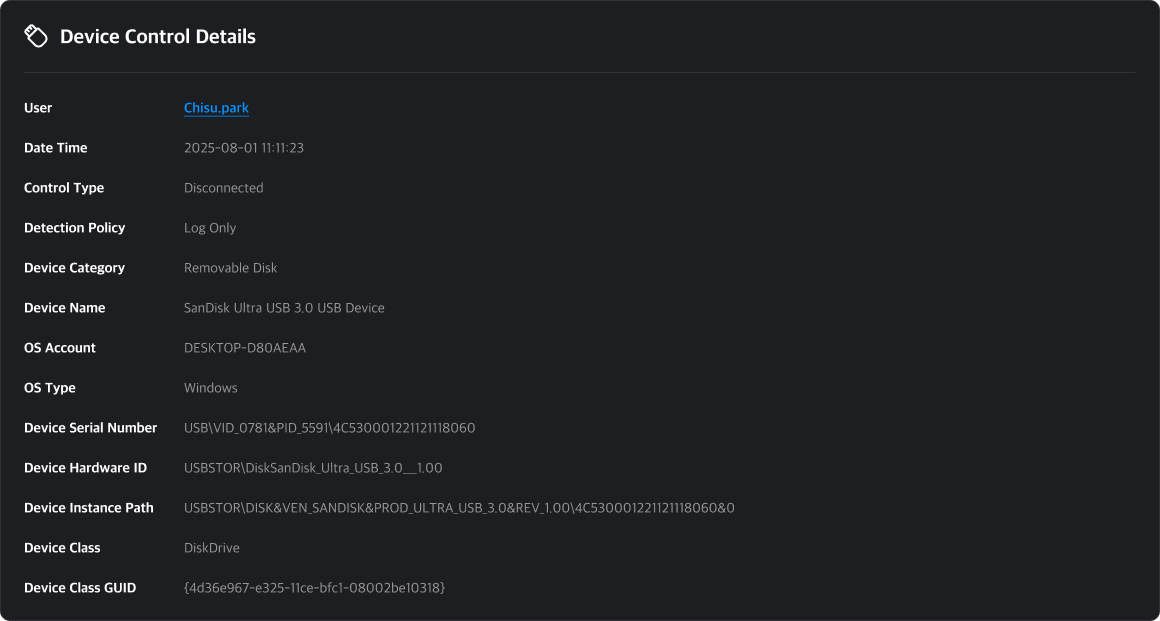
Device Control Details
You can check detailed information such as the detected device control type and detection mode.
Related File Control Logs
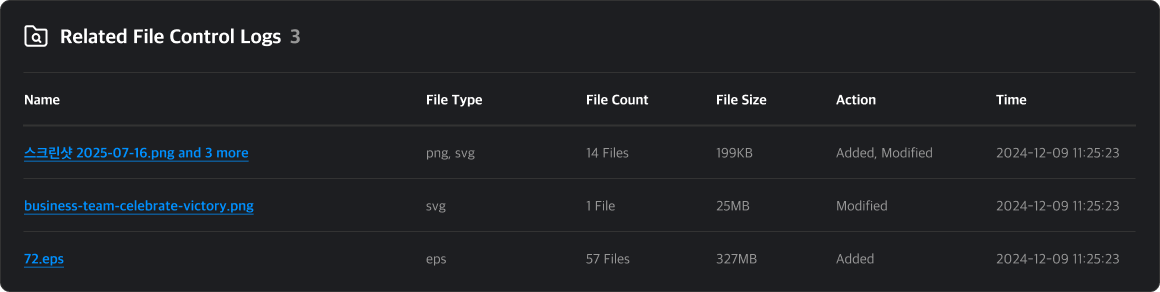
You can review related file control logs generated from the detected device. File information and control type are shown, and clicking a file name opens the File Control Log detail page.
Sharing
There are two ways to share an Device Control Log:
- Copy Link: Useful for sharing outside the system.
- Direct Share: Share with specific admins within MonitorDog.
You can share with multiple users at once. This action generates a notification for recipients.

Delete Log
If the log deletion feature is enabled in the Organization Settings, the log deletion button will be activated.

Q. Can anyone delete logs?
A. Only the Owner tier can enable the log deletion feature. Once enabled, log deletion is restricted to Owner and Manager tiers.
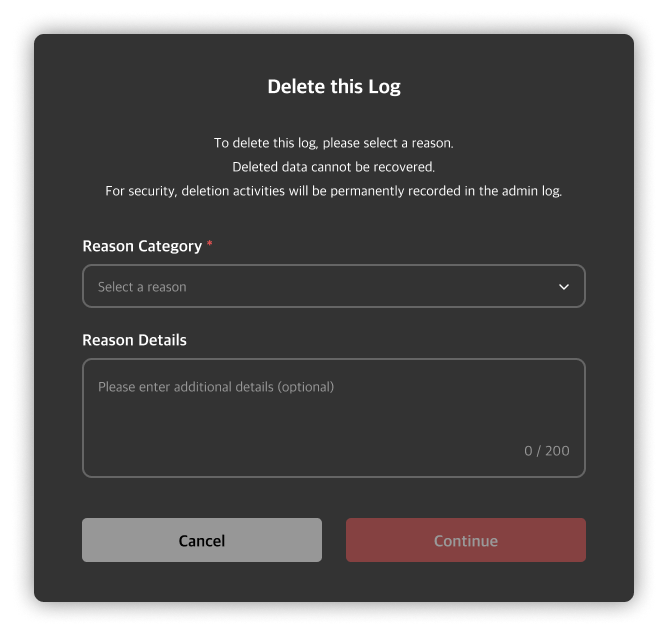
Clicking the log deletion button will open a deletion modal. You must select a reason and provide detailed comments to proceed with the deletion.
Types of Deletion Reasons
- Retention Period Expired
- Personal Data Disposal
- Storage Space Optimization
- Error/Abnormal Log Cleanup
- User Deletion Request
- Others
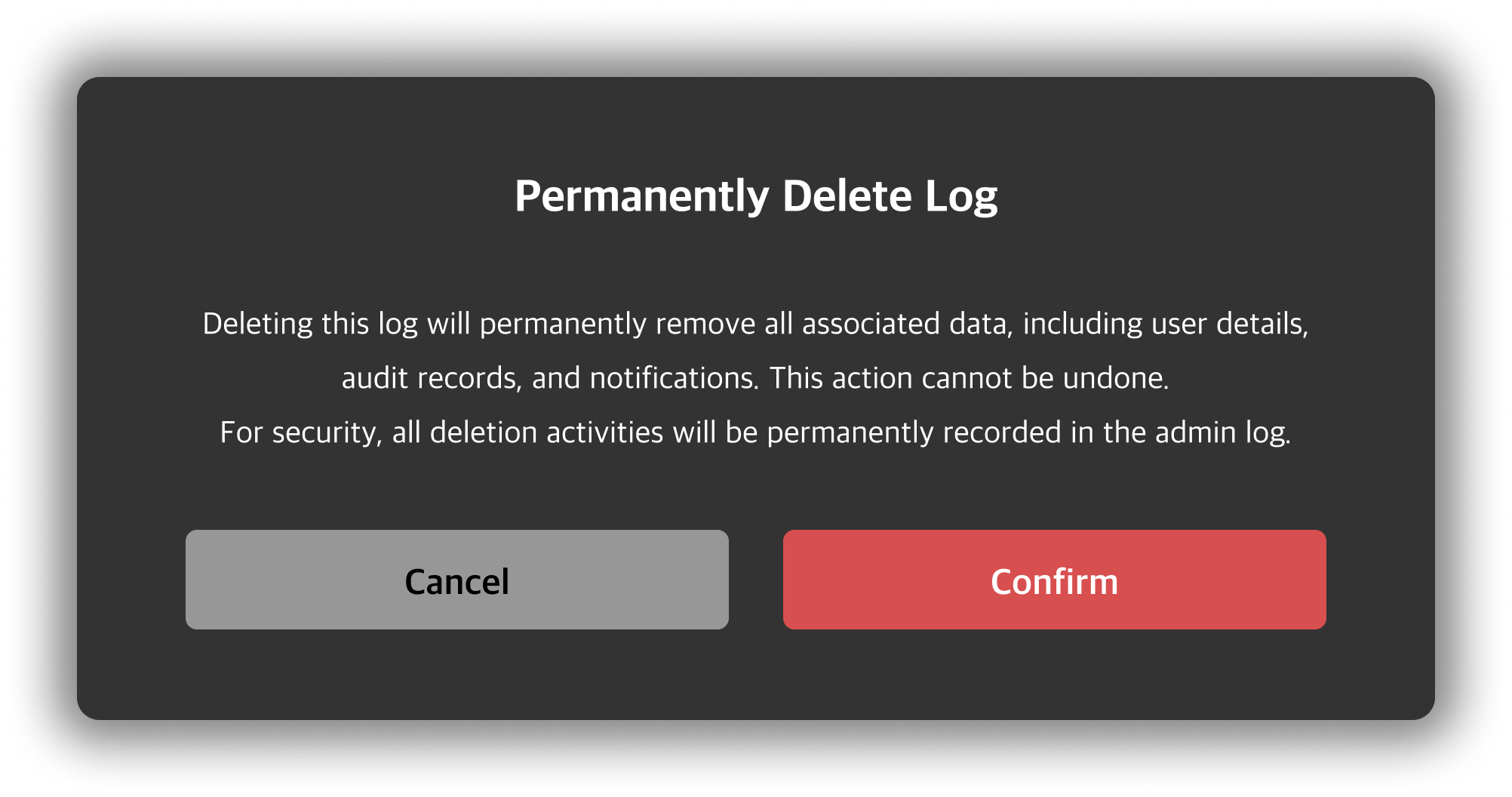
After reviewing the notice in the re-confirmation modal, click the delete button to process the deletion. You will then be redirected to the Device Control Log table.
Q. Can deleted logs be recovered?
A. Once a log has been deleted, it cannot be recovered. Please be careful to avoid data loss when deleting logs.