Invitations
This page describes the features of the MonitorDog invitation management page.
You can monitor and manage the status of invitations and user activity for MonitorDog.
Invitation Status Dashboard
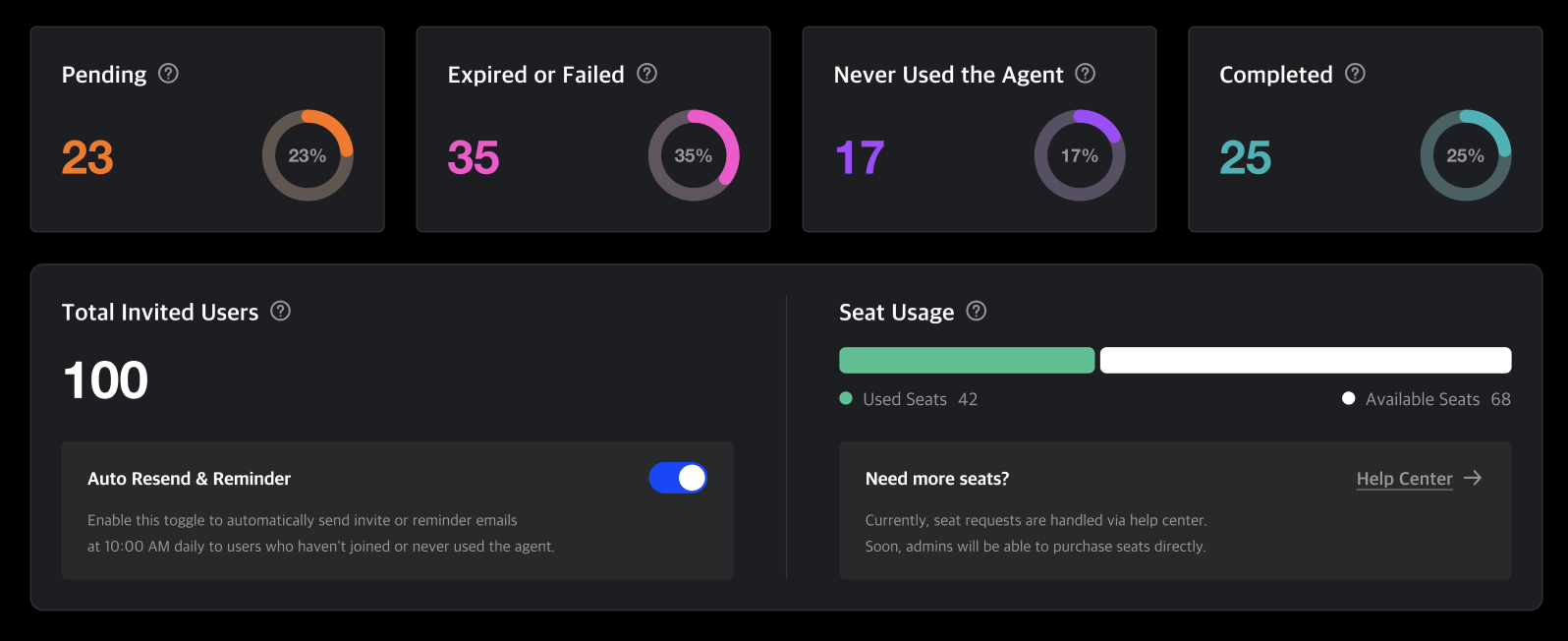
- A dashboard that shows the status of MonitorDog Admin and general user invitations. You can check the data through graphs and metrics.
- Displays the total number of users invited via email, seat usage, and allows you to configure reminder email settings. If the reminder toggle is enabled, a reminder email is sent daily at 10 AM to users who have not signed up or have no login history.
- You can check your organization's seat status. The number of seats is defined by the MonitorDog team, and the number of used and remaining seats is displayed.
Dashboard Item Details
- Pending: Users who received an invitation email but have not signed up yet. You can resend the invitation or cancel it.
- Expired or Failed: Users whose invitation expired within 72 hours, or who could not sign up because all seats were exhausted.
- Never Used the Agent: Users who signed up but have never logged into the Agent after installation.
- Completed: Users who completed signup, PC program installation, and login.
Seat
A seat refers to a license unit assigned to a MonitorDog account. One seat allows one user to be registered. You need at least one available seat to invite or register users. Admin accounts also occupy a seat. If all seats are used, no further user registrations are allowed. To request more seats, please contact the MonitorDog team.
Invitation Status Table
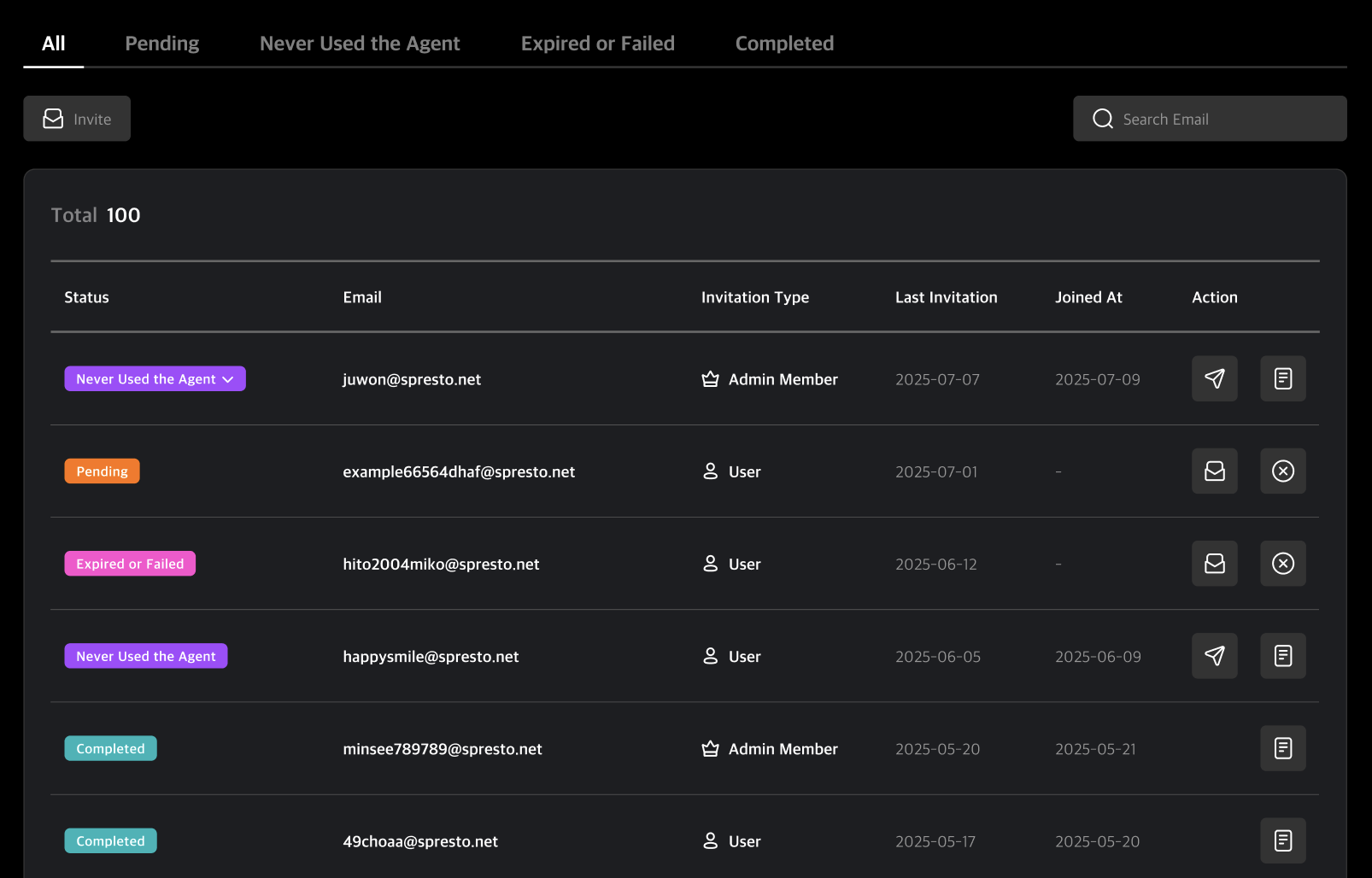
This table allows you to send and manage MonitorDog invitation emails. You can view each user's status, email, type, last invitation date, and sign-up date. User management actions vary depending on their status.
Management by Invitation Status
- Pending: Users who have not signed up after receiving the invitation email. You can resend or cancel the invitation.
- Never Used the Agent: Users who signed up via invitation but have no login history. For users who do not require the Agent, you can manually change their status to "Completed".
- Completed: Users who have completed both signup and login. You can check their detailed user information.
Table Tabs
Click the top tabs to filter data by invitation status.
Tab Descriptions
- All: View all data in aggregate.
- Pending: View users who have not signed up yet.
- Never Used the Agent: View users who have completed signup but have not logged into the Agent.
- Expired or Failed: View users whose invitations expired or failed.
- Completed: View users who have completed signup.
-
Invite User
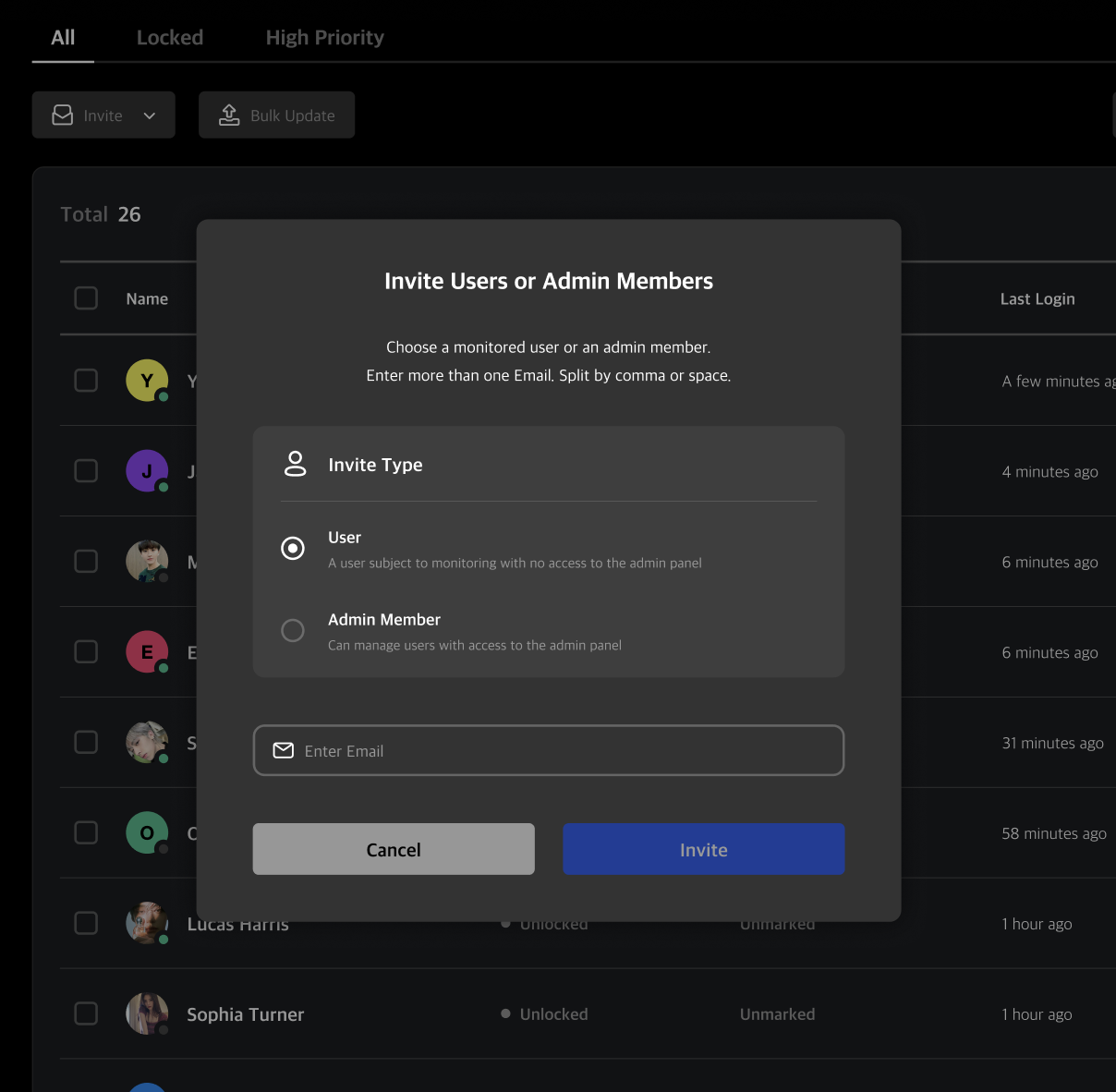
You can select an invitation type and enter an email address to send an invitation email. A signup link will be delivered via email.
Admin users must select a permission level.