Account Face Authentication Settings
This page describes each feature of the Individual Face Authentication Settings in the MonitorDog Admin Dashboard.
MonitorDog provides a powerful identity verification method by analyzing facial data through custom AI models. In the Face Authentication settings, you can configure whether to enable the authentication feature, set the security level for Biometric (Liveness) detection, and define response policies for authentication failures.
Policies applied on this page are for individual users and take precedence over organizational settings. To change organization-wide settings, please visit the Face Authentication Settings page.
Q. What does it mean that individual settings take precedence?
A. Even if Face Login is enabled in the organization settings, if it is disabled in an individual's settings, Face Authentication will not be active for that specific user.
Face Authentication Item Settings
Configure the timing and detailed options for Face Authentication.
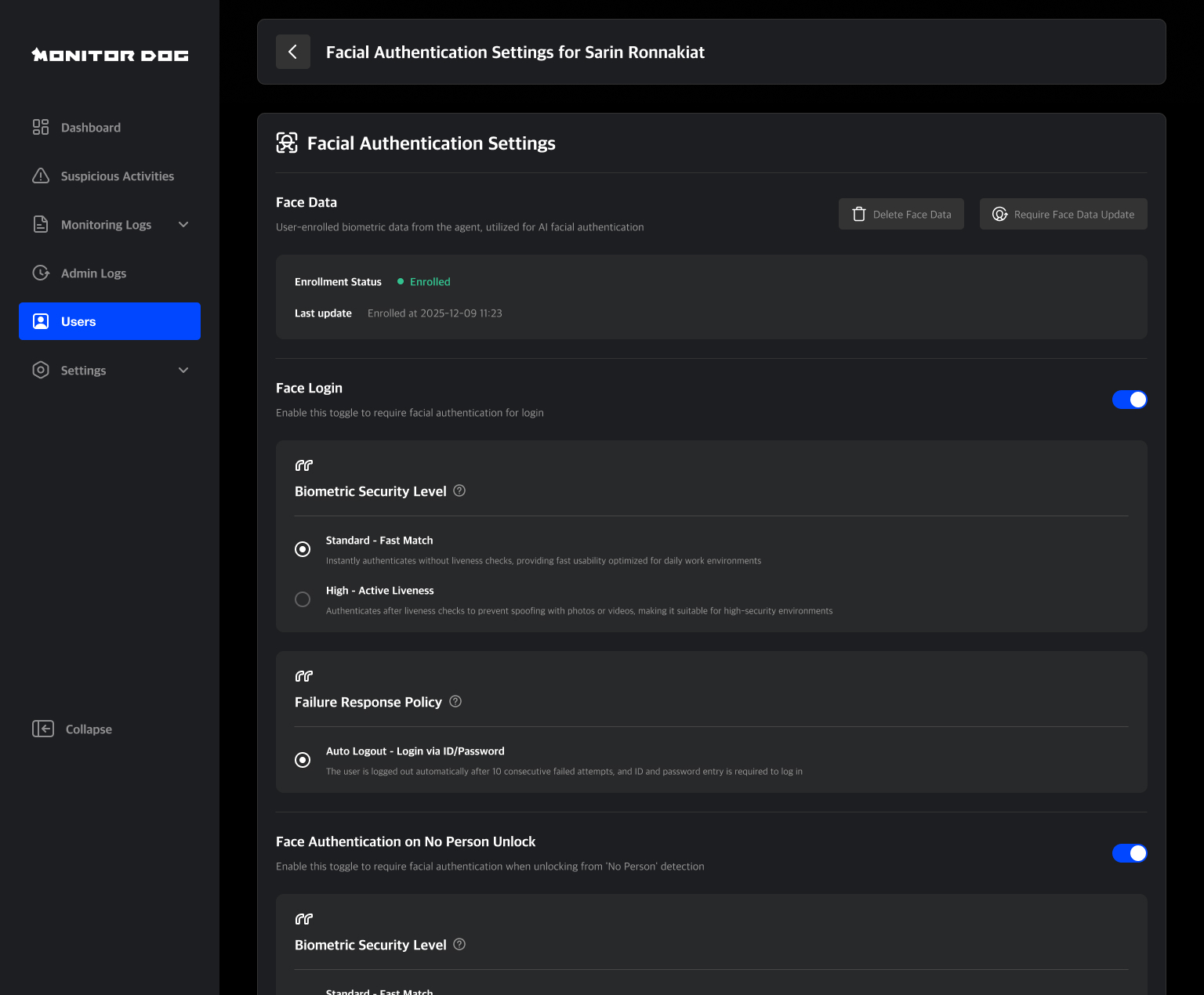
Face Data Information & Management
You can check the status and update date of a user's face data and generate requests for deletion or optimization.

- Delete Face Data : Deletes the registered face feature data.
- Subsequent Process : After deletion, a new face registration process will be initiated the next time the user attempts to log in or unlock a 'No Person' lock.
- Require Face Data Update : Requests a re-capture to optimize the registered data.
- Subsequent Process : The optimization process will run immediately on the monitordog agent upon request.
Face Data Optimization: This replaces data with low matching rates among the registered facial data during authentication. It involves collecting additional data over 5 sessions to improve accuracy.
Face Login
Adds a face authentication step in addition to ID/PW at login to prevent account hijacking.
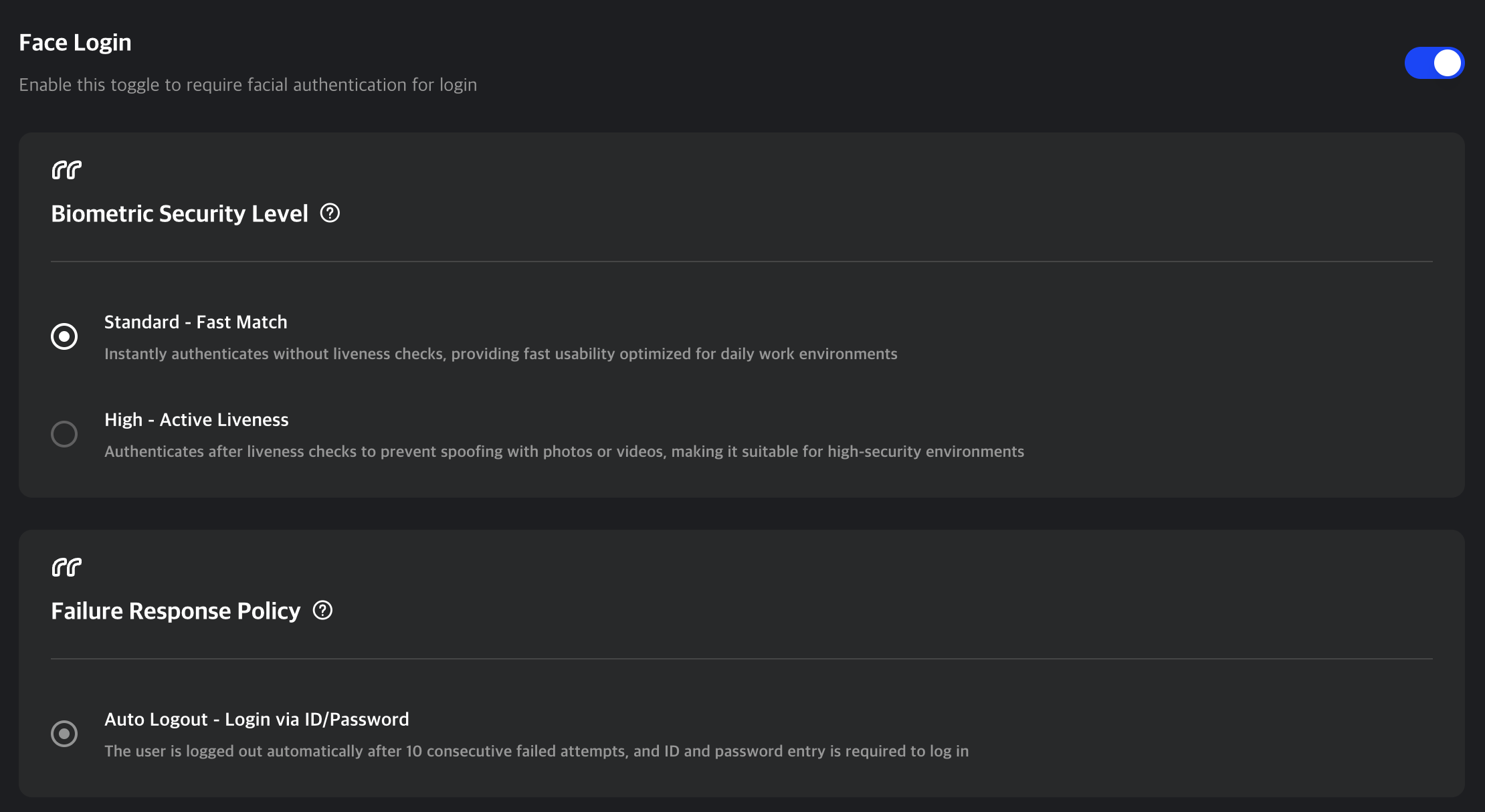
Biometric Security Level
This option verifies actual human biological responses (Liveness Detection) to block spoofing attempts using photos, videos, or masks. Choose the appropriate strength based on your organization's security policy.
- Standard - Fast Match : Instantly authenticates without liveness checks, providing fast usability optimized for daily work environments.
- High - Active Liveness : Authenticates after liveness checks to prevent spoofing with photos or videos, making it suitable for high-security environments
Failure Response Policy
The user is logged out automatically after 6 consecutive failed attempts, and ID and password entry is required to log in.
Face Authentication on No Person Unlock
Sets the requirement for face authentication to unlock the screen when a user returns to work from a 'No Person' state.
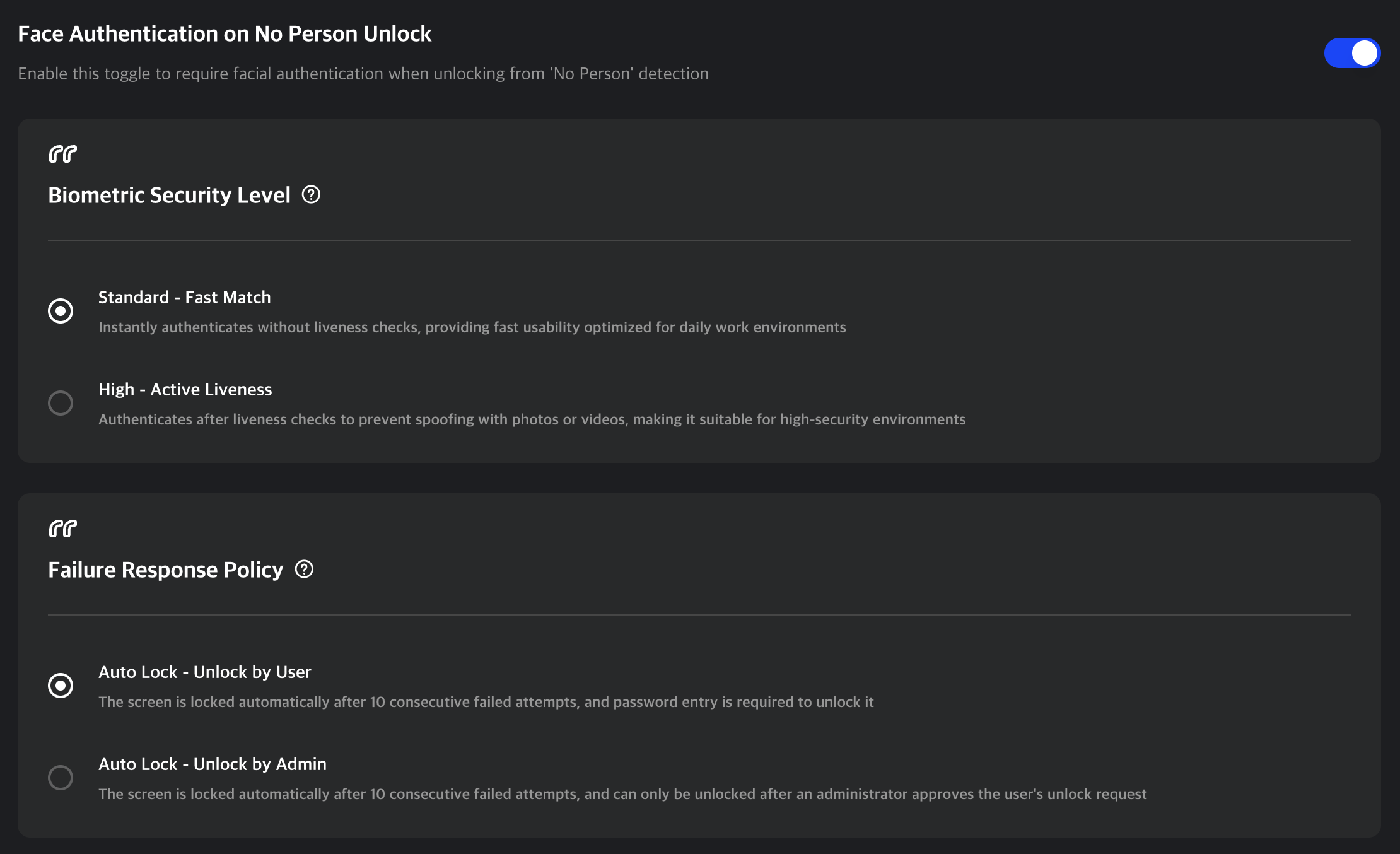
Biometric Security Strength
Similar to the login settings, you can choose between Standard (Fast Auth) and High (Active Liveness). Since 'No Person' unlocking occurs frequently, consider the balance between security and convenience.
Failure Response Policy
If face authentication attempts continue to fail, step-by-step security measures are applied.
- Step 1 (3 Consecutive Failures): The screen is temporarily locked for 10 seconds, and retries are restricted. (Fixed System Policy)
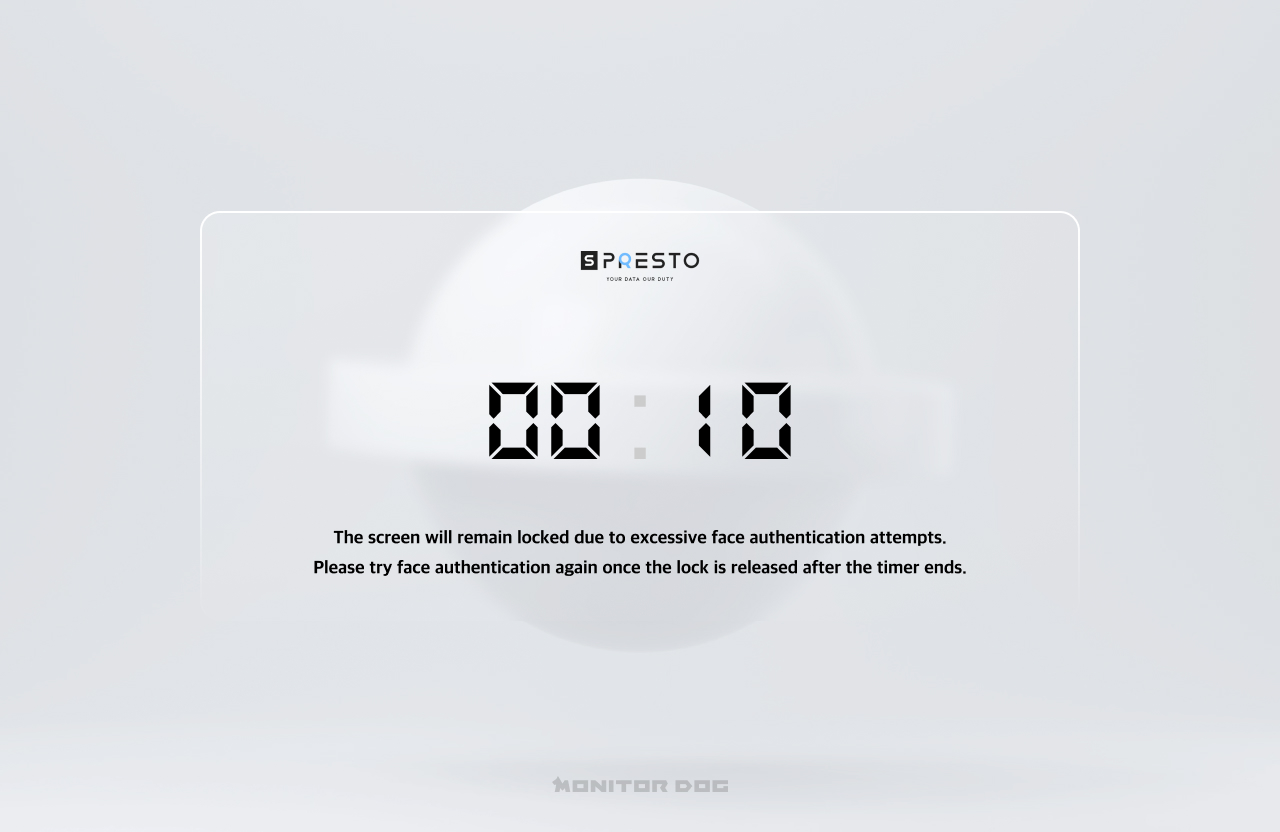
- Step 2 (6 Consecutive Failures): The screen is completely locked, and can only be unlocked using one of the methods below.
- Auto Lock - User Manual Unlock: The user unlocks the screen by manually entering their account password.
- Auto Lock - Admin Approval Unlock: The lock is only released after an administrator approves the user's unlock request on the dashboard.
Q. What happens if I disable Face Authentication for 'No Person'?
A. To prevent security gaps, the 'No Person' policy is automatically switched to 'Password Entry'. If you wish to change this to another policy, you can adjust it in the Detection Rule - No Person Settings.
Q. I don't want my face images to be stored on the server!
A. MonitorDog prioritizes user privacy and strictly separates authentication data from security logs.
- Face Authentication Data: During authentication, only numerical Feature Vectors are extracted from the transmitted data. The original images are immediately destroyed after analysis and are never stored anywhere. They are managed as encrypted data that cannot be reconstructed, so you can use the service with peace of mind.
- Event Logs: However, when a security event occurs (such as success/failure of face authentication or violation of detection rules), webcam and monitor screen captures are recorded for monitoring purposes, just as before. These are used as legitimate records for security auditing.