Webcam Detection
This page describes the features of the Webcam Event Management section in the MonitorDog Admin Console.
The MonitorDog Agent uses AI models to analyze and monitor webcam events. On this page, you can configure event lock types and set the lock duration for detected webcam events.
Detection rules configured here are applied as the default personal detection rules for newly registered users in MonitorDog. If you want more personalized monitoring for specific users, you can adjust their individual detection settings from the User Management page.
⚠️ Only admins with Manager or higher roles can access this page.
Event Lock Settings
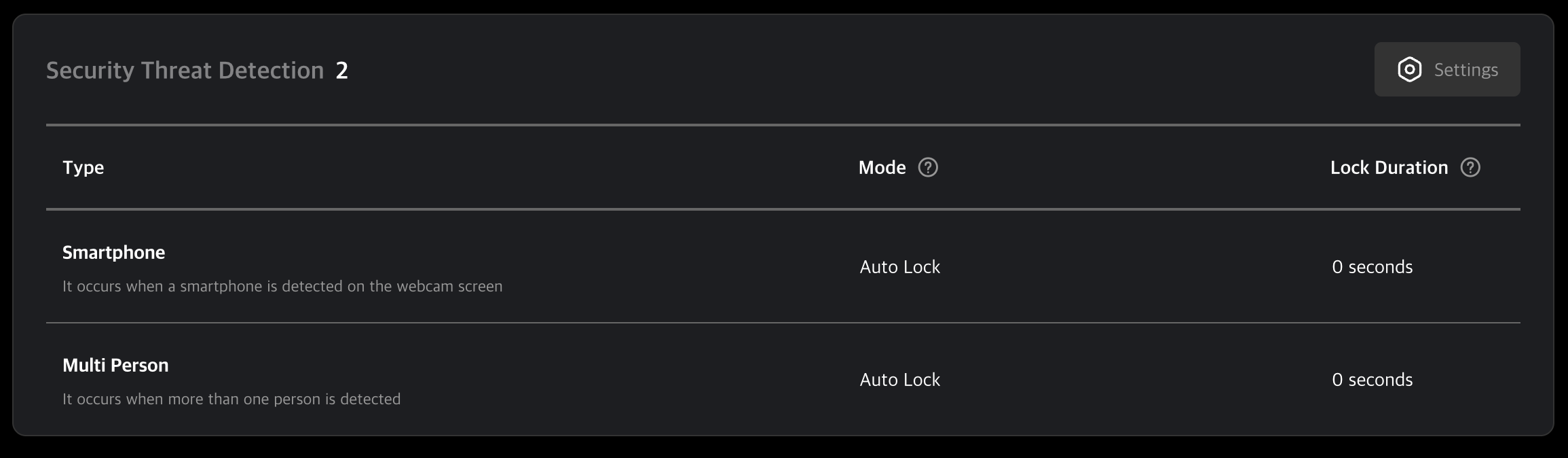
Supported Webcam Event Types
- Smartphone: Detects the presence of a smartphone. If a smartphone is used to record the screen, the configured lock will be activated.
- Multiple Persons: Detects multiple individuals. If two or more people are detected within the webcam boundary, the lock will be triggered.
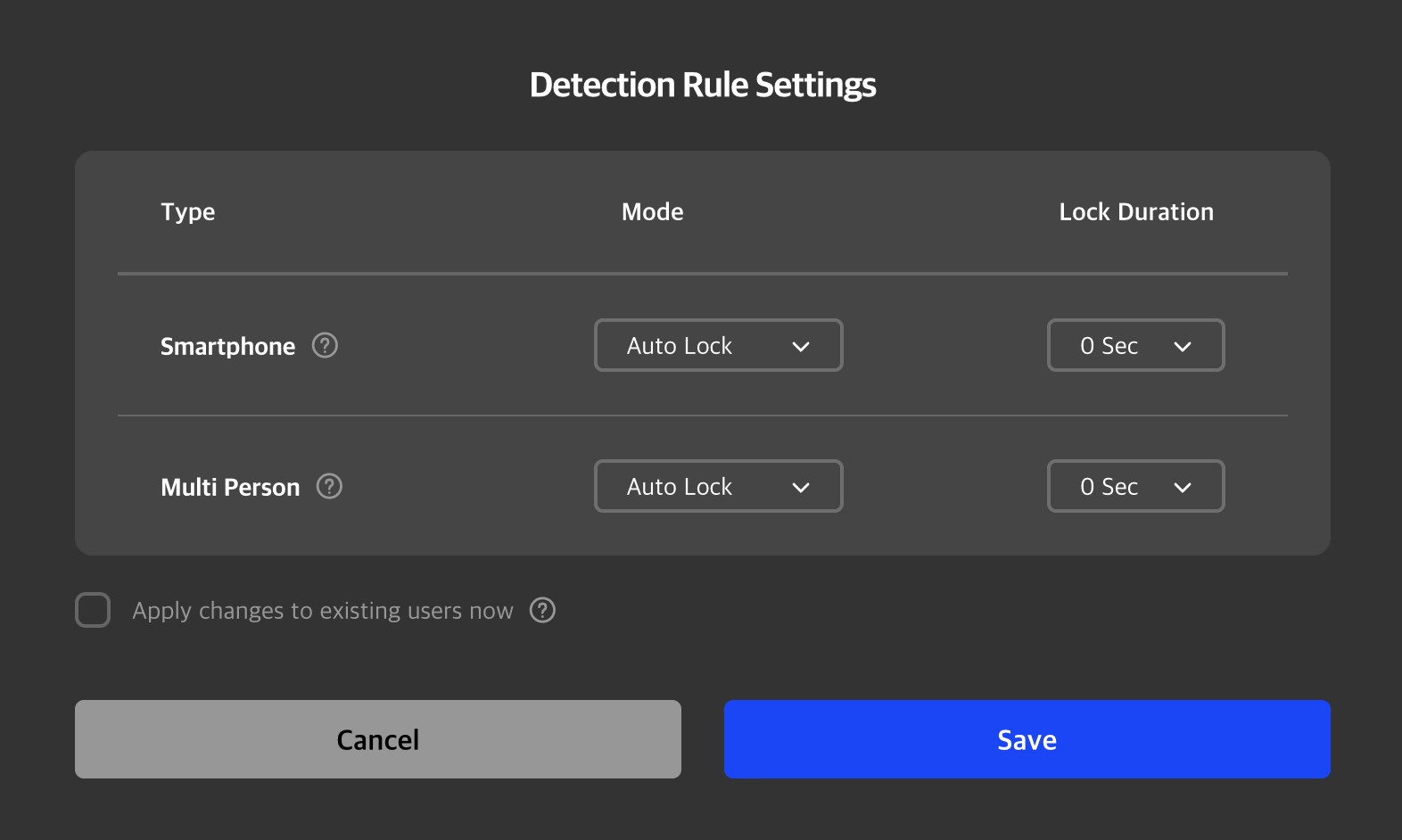
Lock Mode Types
- Auto Lock: When an event is detected, the user's device is locked by the agent. You can configure how long the lock is maintained.
- Log Only: When an event is detected, the device is not locked, but the event is logged in the Monitordog Admin.
- No Detection: The event is not detected at all.
Lock Duration
This is the amount of time the Monitordog lock remains active. Once the configured time elapses, the lock is released and event detection is retried.
- Example scenario: Screen capture attempt → PC locked (event lock) → Lock maintained for configured duration → Lock released → Retest for screen capture attempt
No Person Detection
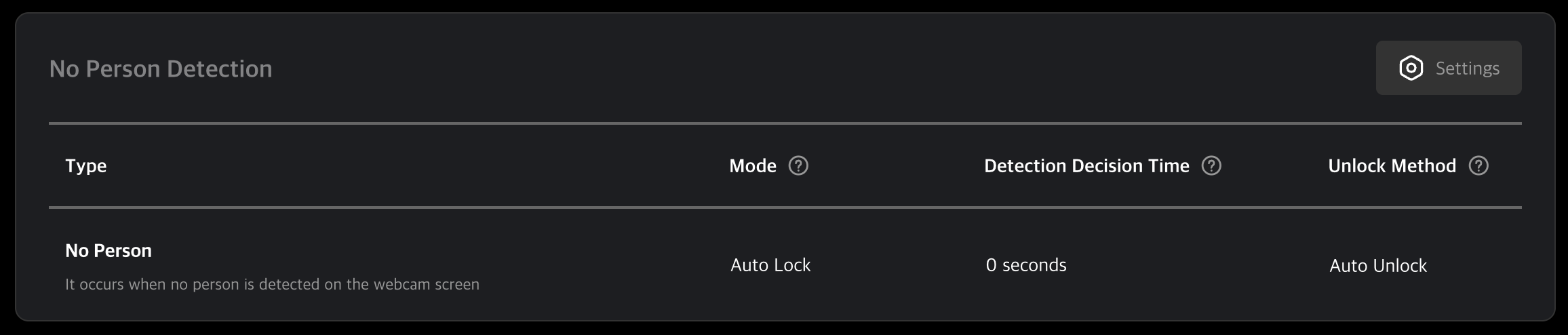
You can configure settings related to No Person events among various webcam-based events.
A No Person event detects an absence of any individual. If a person is not detected within the webcam’s boundary, the device lock will be activated.
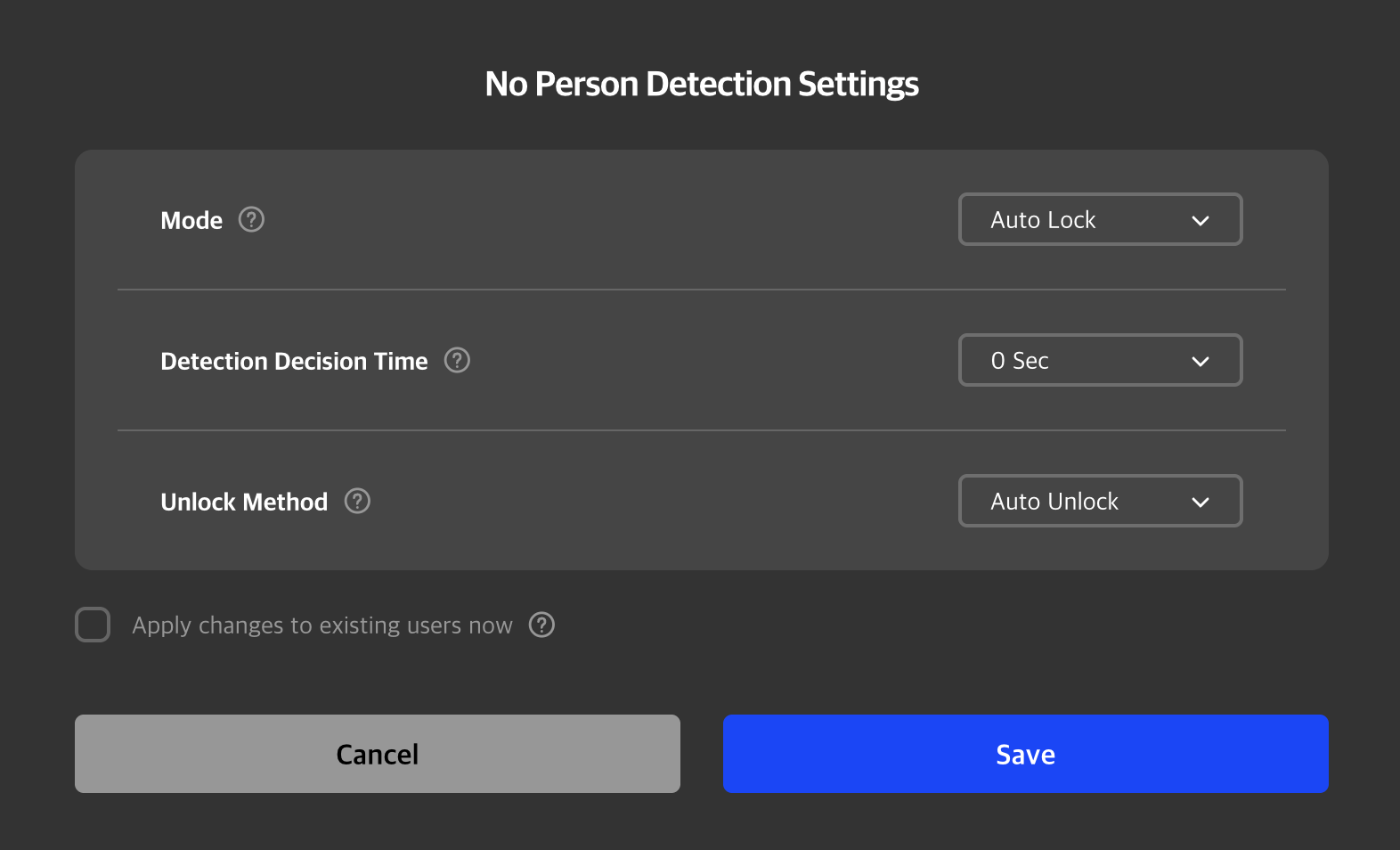
Lock Mode Types
- Auto Lock: When an event is detected, the user's device is locked by the agent. You can configure how long the lock is maintained.
- Log Only: When an event is detected, the device is not locked, but the event is logged in the Monitordog Admin.
- No Detection: The event is not detected at all.
Detection Decision Time
You can set the time duration for judging a No Person status. This can be configured from 0 to 5 seconds. A No Person status must be maintained for the set duration to be officially determined as an event. You can adjust this based on the nature of the work or specific user movement patterns.
- Lock Executed : No Person detected → State maintained for the Detection Decision Time (e.g., 3s) → Final No Person event triggered and device locked
- Lock Not Executed : No Person detected → User re-detected within the Detection Decision Time (e.g., 3s) → Event cancelled and device remains unlocked
Unlock Method
You can configure the method for unlocking the device when a No Person event occurs.
- Auto Unlock : After being locked due to a No Person event, the device automatically unlocks once a person is detected again.
- Password Entry: After being locked due to a No Person event, the user must enter their password to unlock the device.
By checking the checkbox at the bottom, settings are applied collectively at the organization level. Individual settings can be adjusted per user in [User Details → User Management].
Q. What does it mean when a setting is applied organization-wide?
A. You can choose whether to apply settings collectively via the checkbox at the bottom of the modal.
All Users: Applies collectively to all users, overwriting any existing individual user settings.
New Users Only : Applies only as the default value for users added hereafter; it does not affect existing users.
If you want all users in the organization to have the same settings, activate the checkbox. If you want to maintain existing users' settings while applying the default only to new sign-ups, leave the checkbox unchecked.
Q. A smartphone is being detected even when I’m not using one!
A. The AI model may mistakenly detect rectangular objects as smartphones.
To improve accuracy, please remove similar-shaped objects from your surroundings.
Q. I configured detection rules, but they don't seem to work as expected!
A. The rules you set on this page serve as the default detection settings for users in your organization. These defaults are applied to all users initially, but if individual detection rules are later modified for a specific user, those personal rules take precedence. If detection is not occurring as expected, please ensure that both the organizational settings and the individual user settings are aligned.