File Control Logs
This page describes each element of the File Control Log data table and the available features on the detail page.
Through the Device/File logging feature of the MonitorDog Agent, file-related events occurring on the user's device are monitored and recorded.
All recorded logs can be viewed on this page.
Log Table
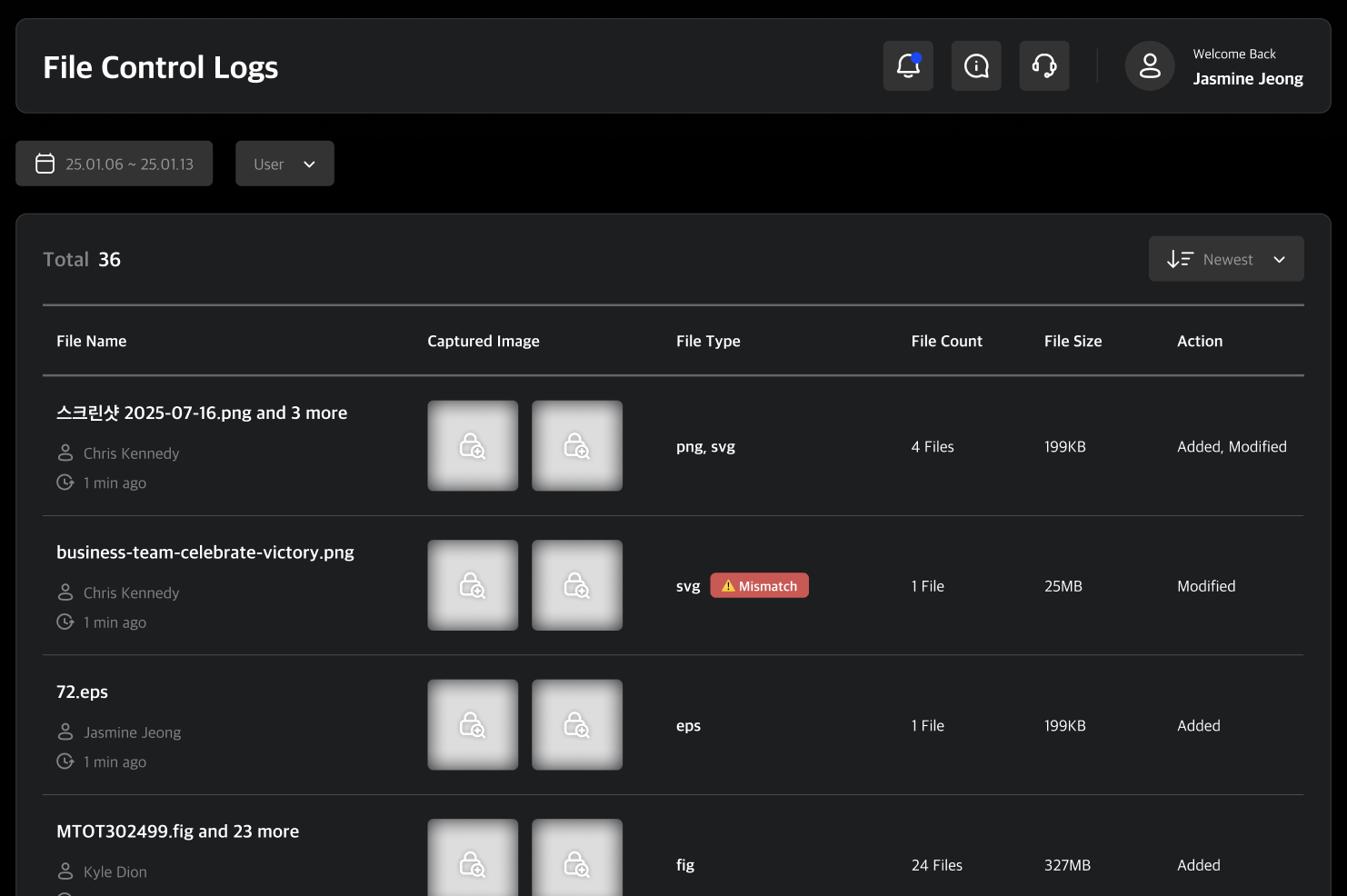
You can review all recorded logs. Each row includes one screen capture and one webcam image, along with brief log information.
Since users may attempt to bypass detection by renaming files, MonitorDog analyzes the actual binary data of the file to identify its true format based on MIME type and magic number.
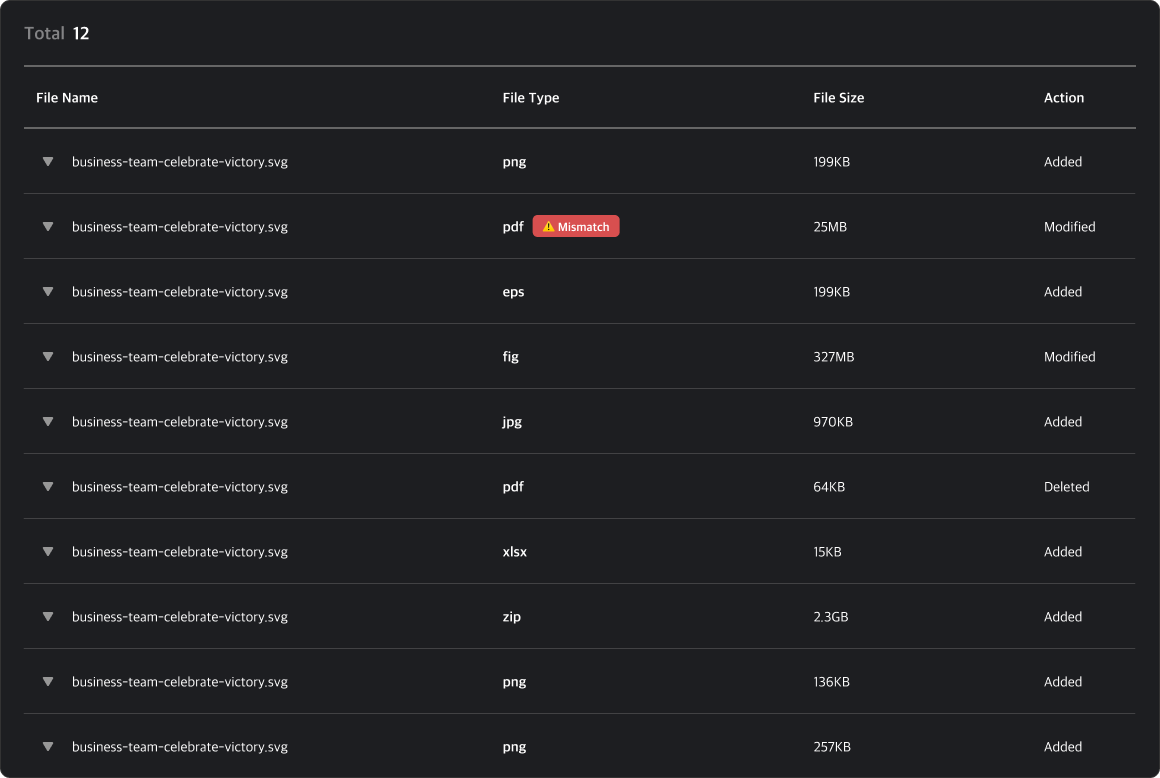
Both the file extension and the actual MIME type are displayed. If they do not match, a mismatch badge is shown in both the log table and the log detail view.
Log Detail Page
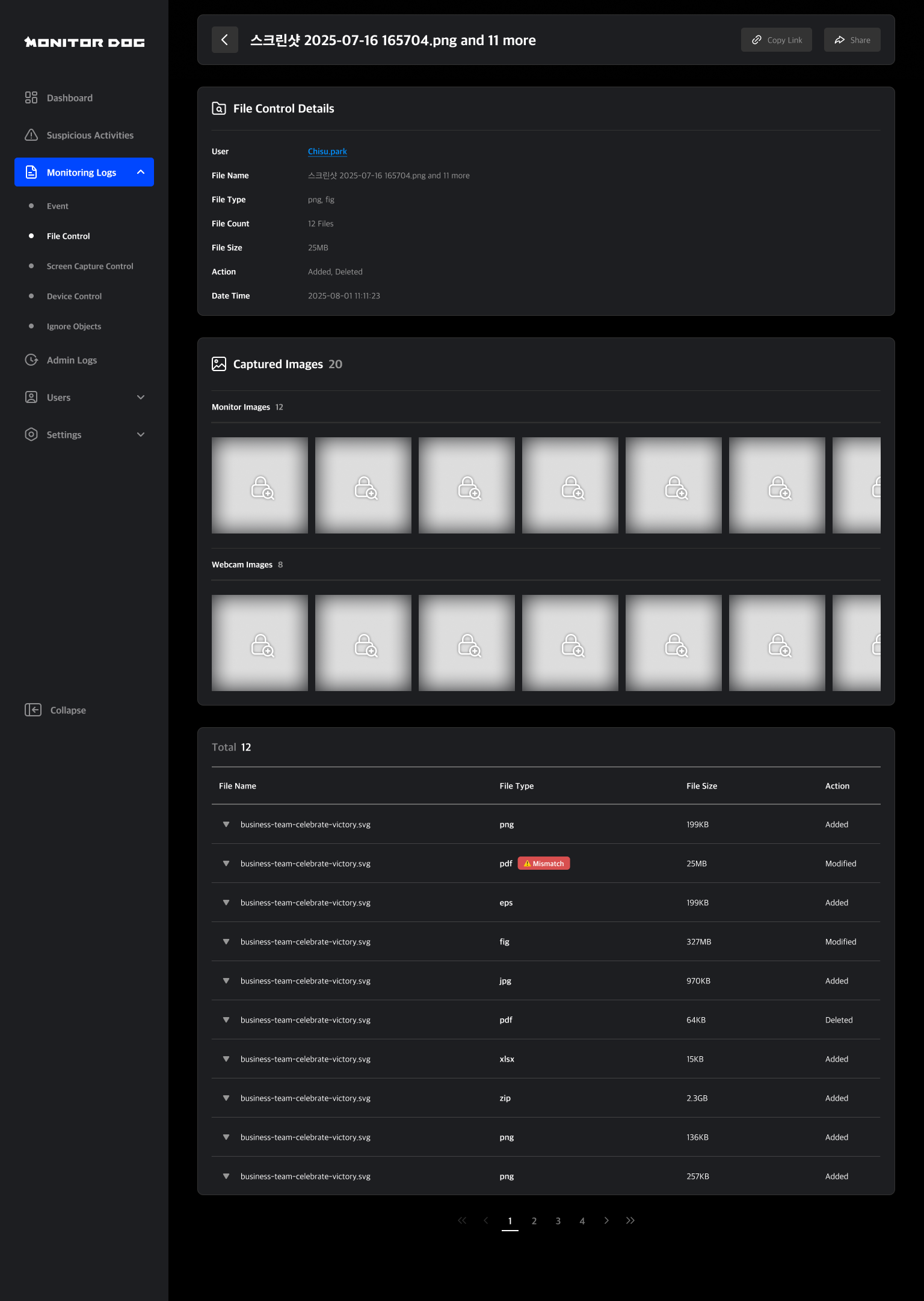
Clicking a log entry in the file log table navigates you to its detail page. On this page, you can review detailed log information and share the event with other administrators.
When a single action is performed, an individual log is generated. When multiple files are controlled simultaneously, a combined log is created. The individual log detail page displays detailed information for that specific log, while the combined log detail page provides aggregated information for all related logs, along with a detailed log table where you can review each log’s information.
Combined Log Details
The file name shown for a combined log corresponds to the first file that was controlled. Other attributes—such as file type, file count, file size, and control action—represent aggregated values from all logs included.
Individual Log Table
In the combined log detail page, a table listing all related logs is provided. You can select each log to view its detailed information.
Action Types
- Unlinked: When a file is deleted
- Added: When a new file is created or added
- Changed: When a file name or type has been changed
Event Images
You can view screenshots and webcam images captured at the time of an event. By default, all images are set to private. To view these images, you must submit a Security Audit request.
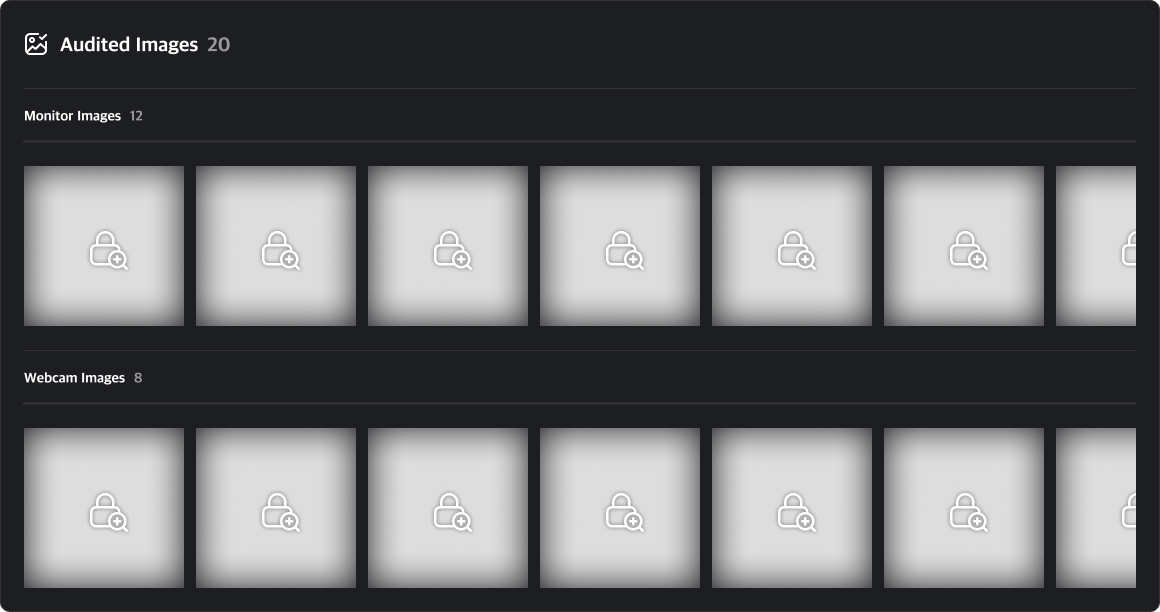
Clicking on a private image will open a security audit request modal. You can start a security audit by entering the target period and audit time along with the reason for the request.
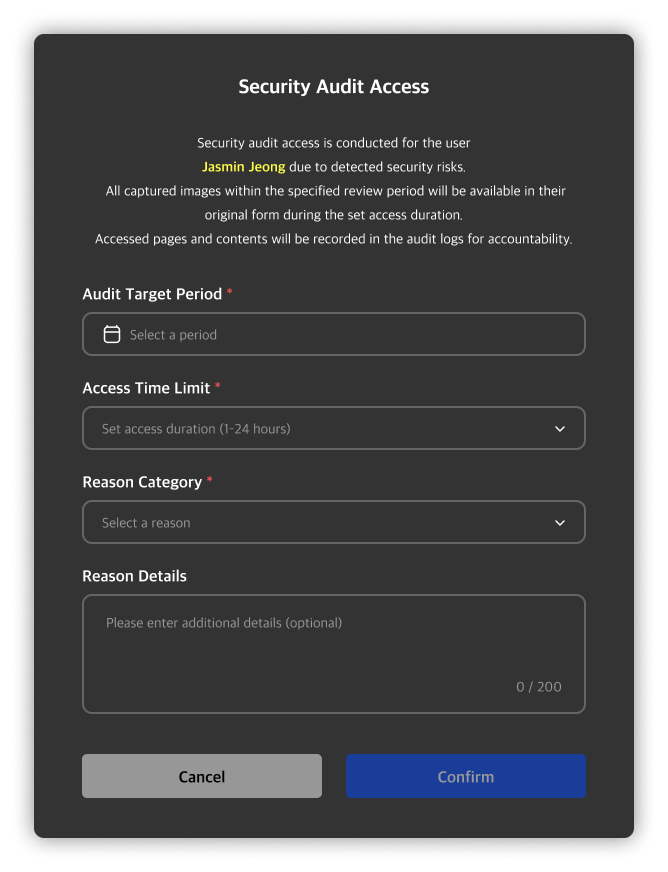
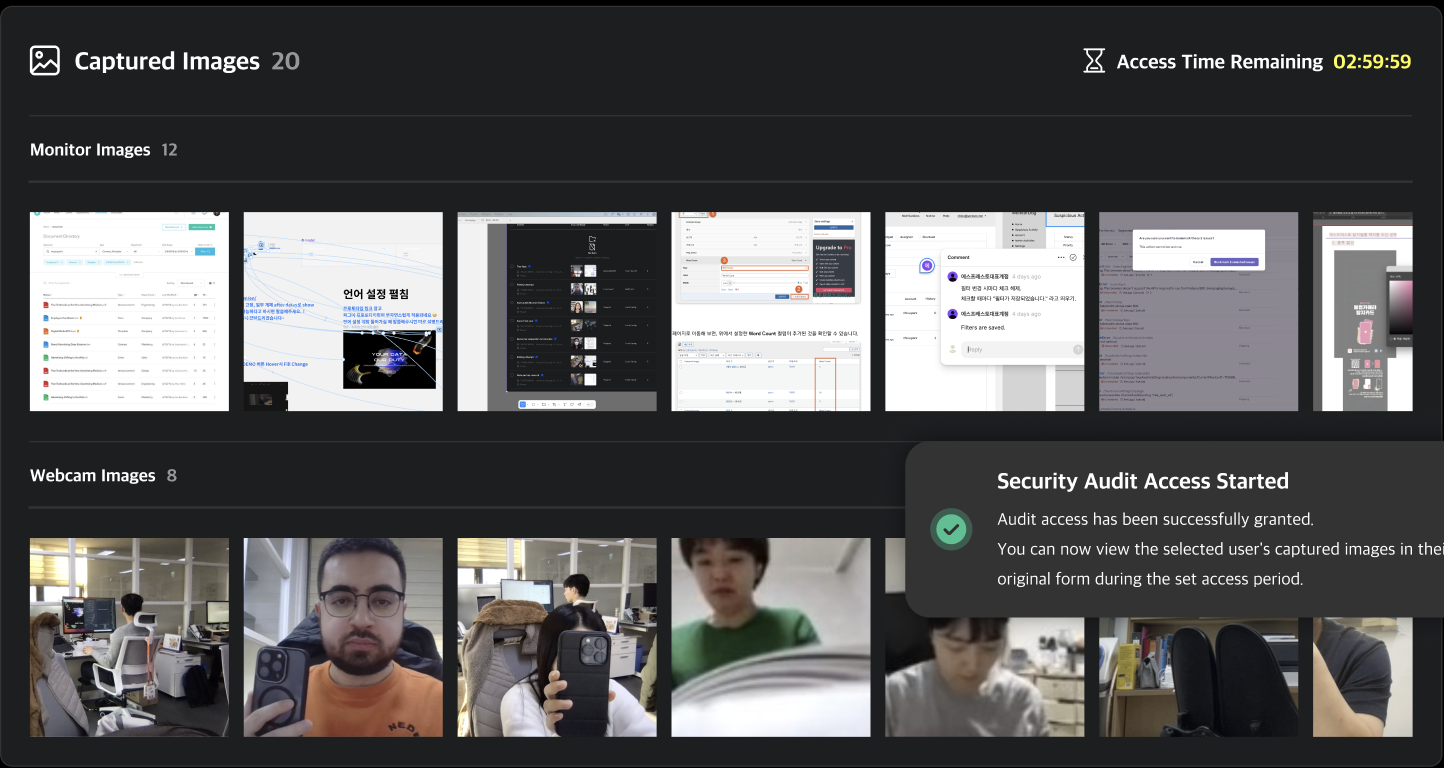
Once the audit begins, a countdown timer will appear at the top right based on the configured audit time, and the images will be made accessible. Any image viewed from the event detail page will be added to the security audit list, and you can review the events and images later via the security audit detail page.
Q. I can’t submit an audit request!
A. Only administrators with Viewer or higher permissions can submit a security audit request. If you want to view the images and proceed with the audit, please contact a higher-level administrator to request a permission change.