Face Authentication
This page describes the Face Authentication screens and step-by-step procedures within the MonitorDog Agent app.
The MonitorDog Agent supports Face Login and No Person (Away) Unlock features using the user's facial data. You can manage whether these features are enabled through organizational or individual settings.
Face Registration
This process occurs when facial data is registered for the first time or re-registered after an administrator deletes existing data.
1. Start Face Registration
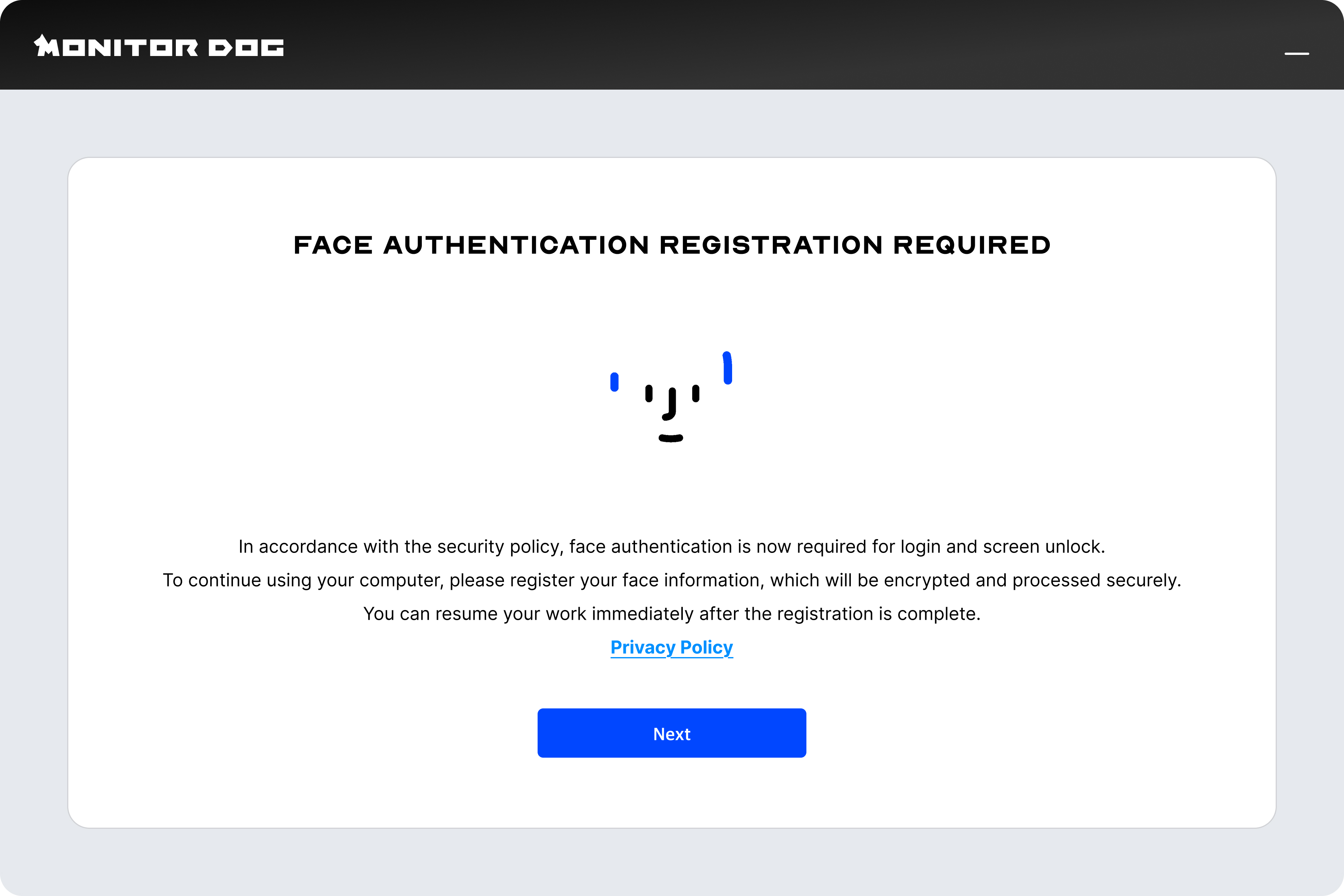
- Click the button to begin the face registration process.
Privacy Protection: Original face images are not stored. Only the user's facial Feature Vector data is extracted and stored for authentication purposes.
2. Face Registration Guidelines
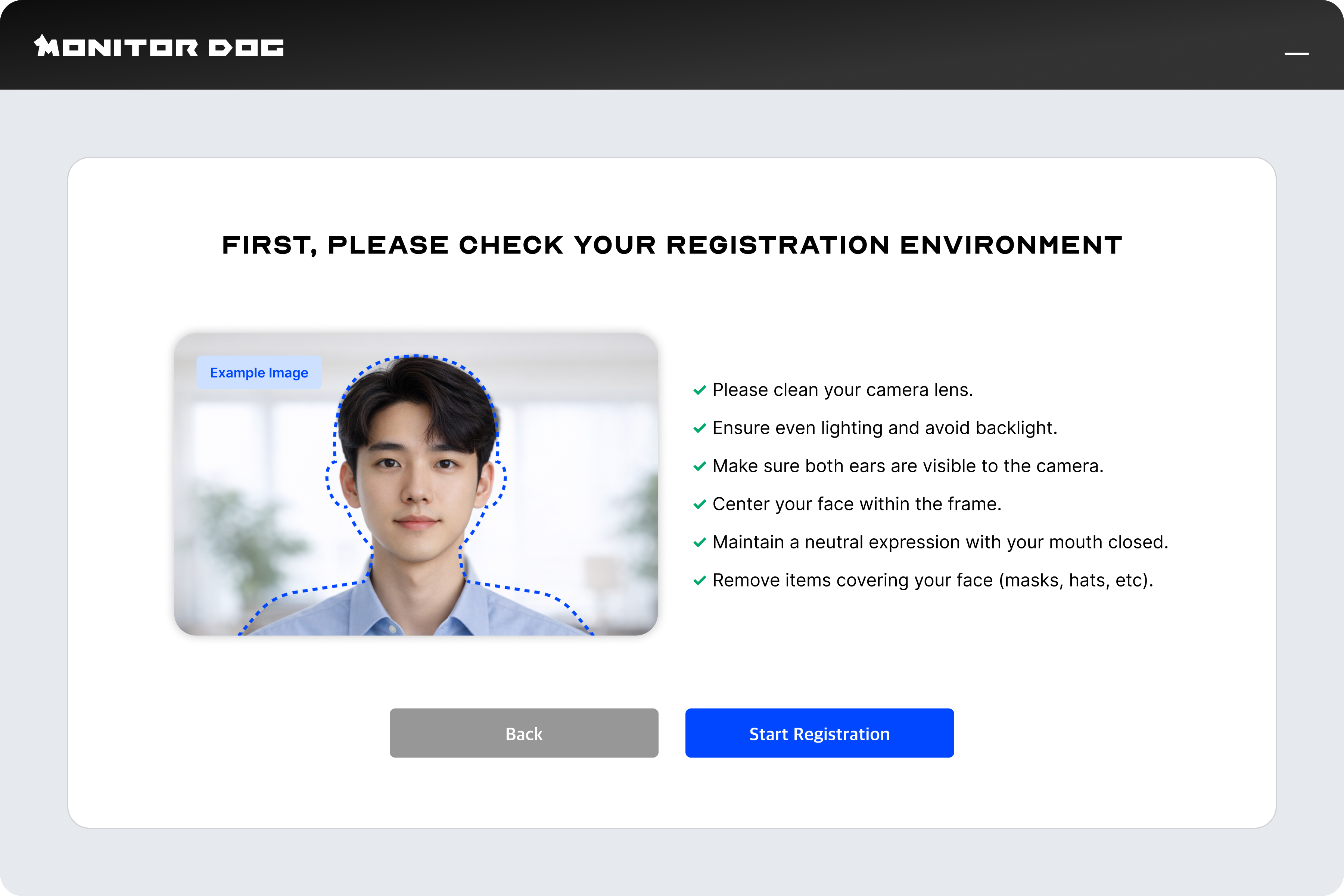
- Please review the guidelines regarding lighting and angles for smooth registration. Ensure you proceed according to the provided instructions.
3. Data Collection & Biometric Verification
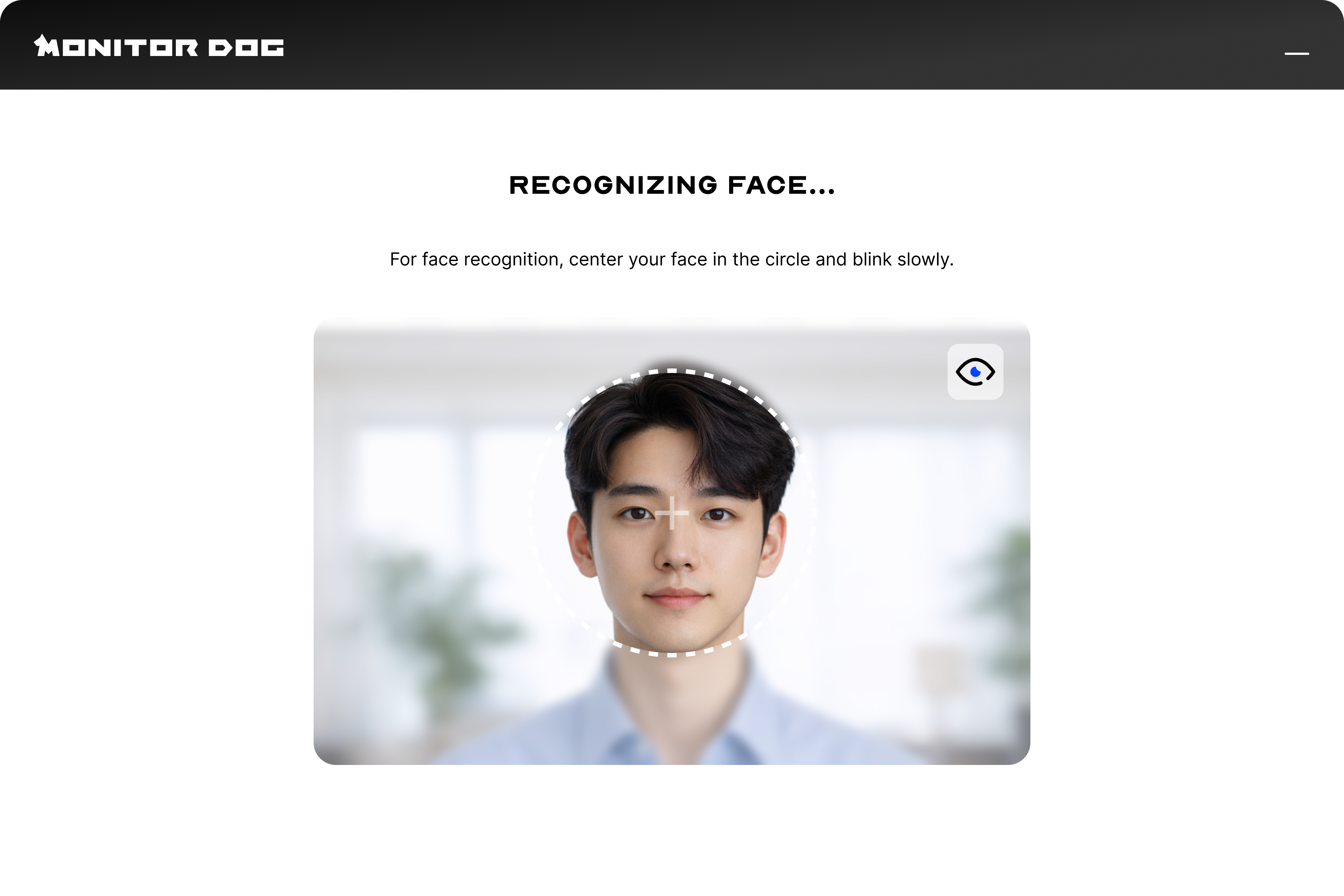
- Position your face within the displayed layout to proceed with data collection. Please follow the designated guidelines to minimize errors caused by webcam performance or ambient environments.
- Liveness Detection: To prevent bypass attempts using media such as photos or videos, a step to verify the person is real is conducted.
4. Face Registration Complete
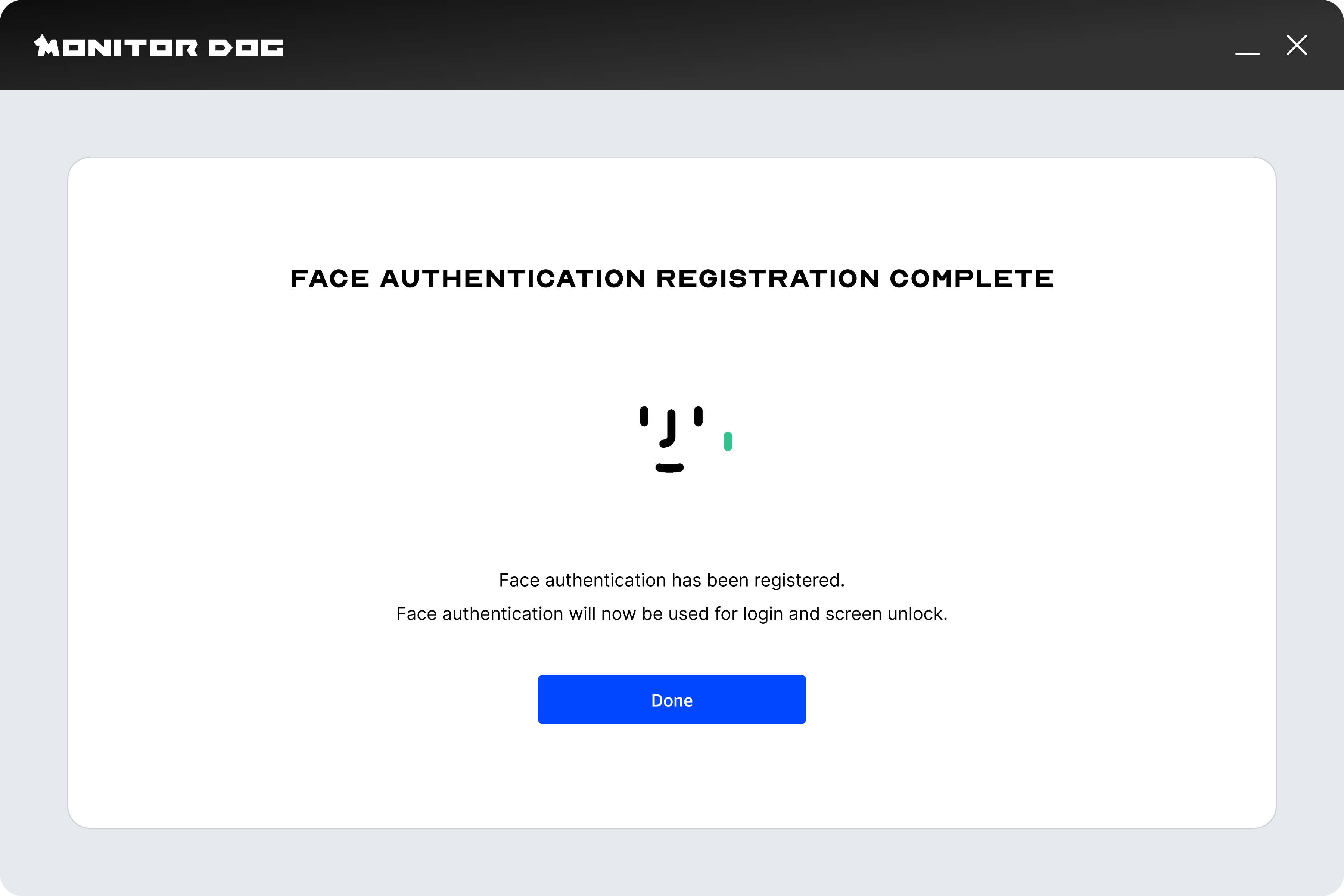
- Once registered, face authentication becomes available immediately. If you need to delete or optimize your face data, you can request it from an administrator via the MonitorDog Admin Dashboard.
Face Optimization
This process occurs when an administrator requests face data optimization to improve authentication accuracy.
-
Face Authentication: First, perform authentication with existing data to verify your identity.
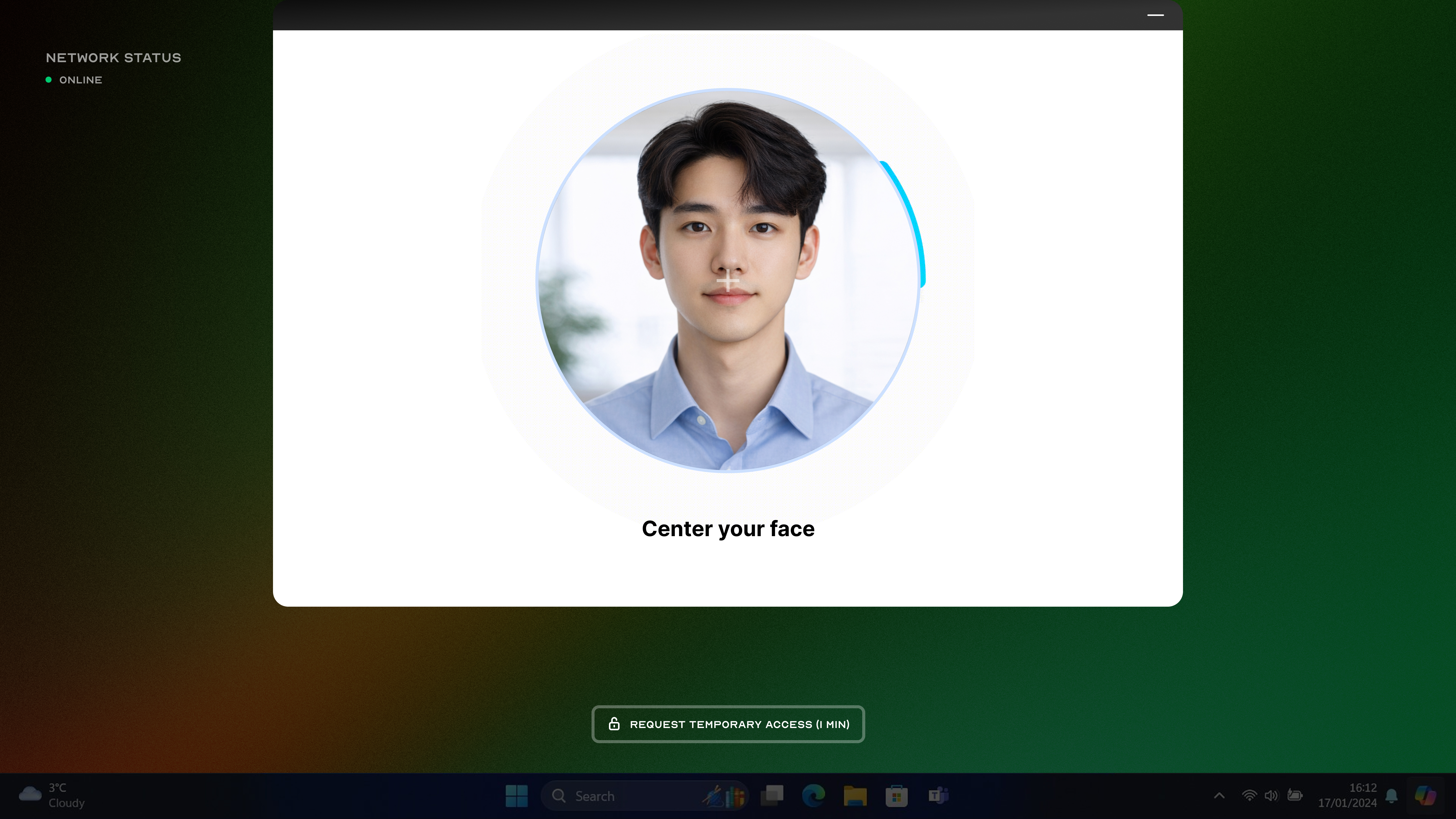
-
Start Face Optimization: An optimization guidance screen is displayed.
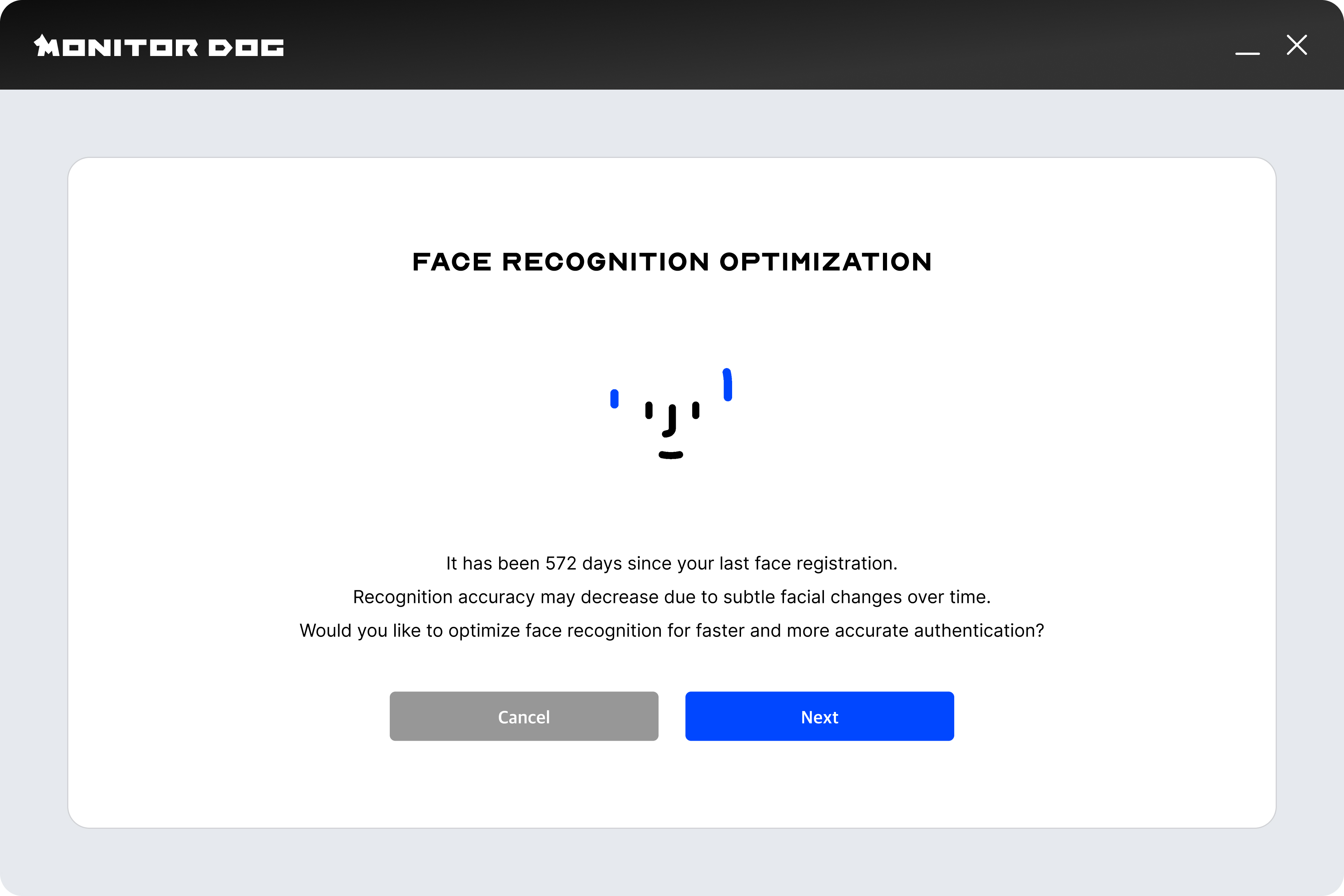
-
Additional Data Collection: A step to collect additional data is performed to reflect changes in the environment or facial angles.
-
Optimization Complete: A more refined authentication model, combined with existing data, is applied.
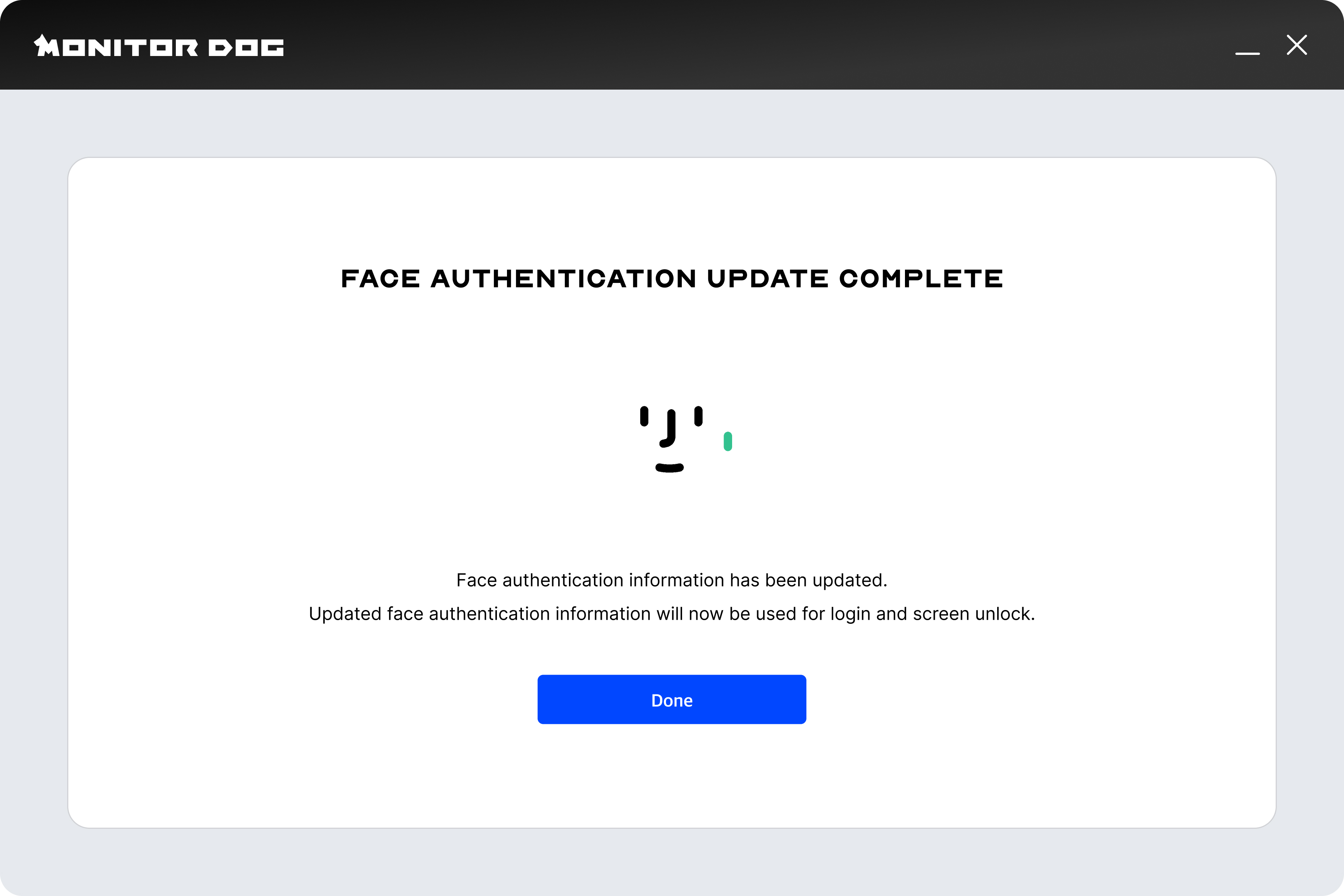
Face Data Optimization: This process replaces data with low matching rates identified during authentication. It involves 5 additional data collection sessions.
Face Authentication (Login / Unlock)
This is the standard authentication process when Face Login or the No Person (Away) Unlock feature is activated.
-
Start Face Authentication: The webcam activates, and the authentication screen appears.
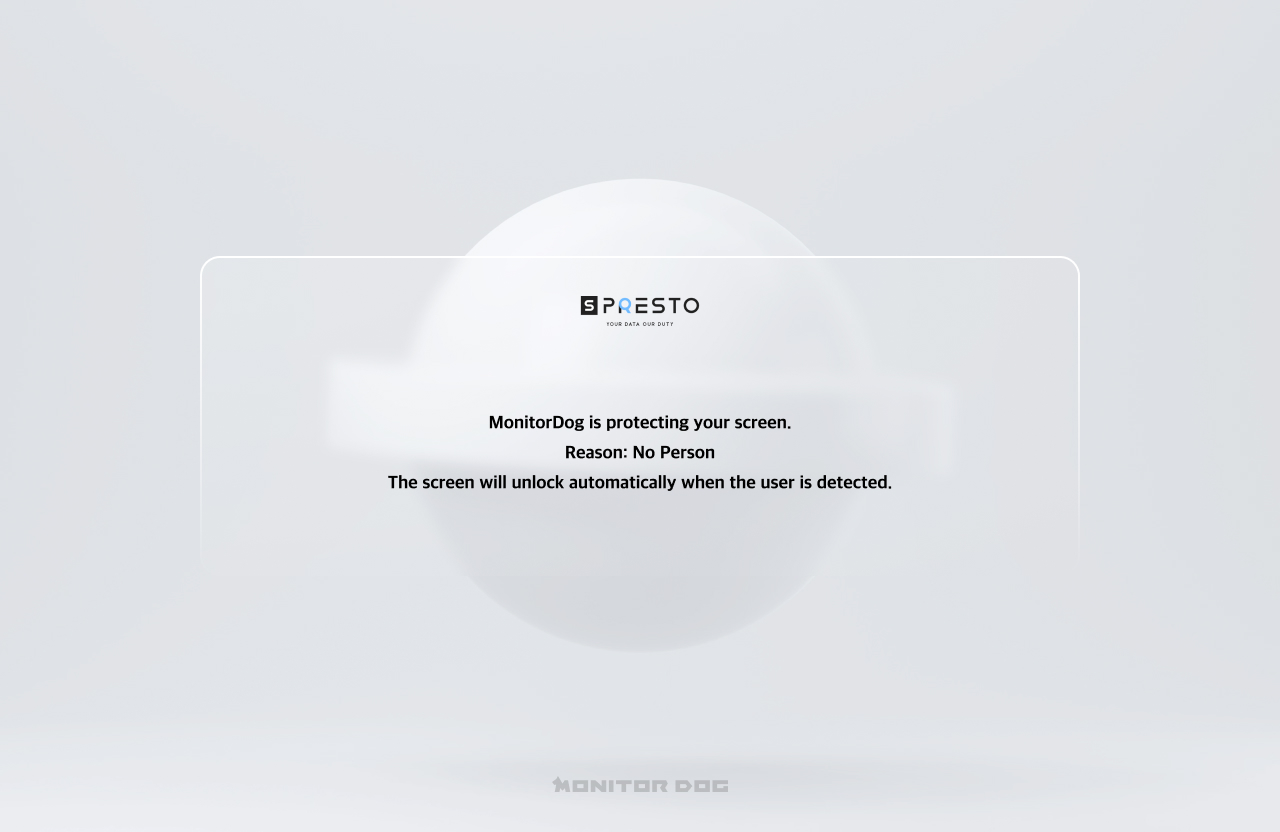
-
Perform Face Authentication: Look at the camera to compare your identity in real-time. (Depending on settings, a Liveness Detection step may be included.)
-
Face Authentication Complete: Upon successful authentication, login is completed or the screen lock is released immediately.
Face Registration & Authentication Guide
Facial data is collected in a standardized format to minimize recognition errors caused by varying webcam performance and ambient environments. Additionally, a Liveness Detection process is conducted to prevent fraudulent registration via media. Please follow the on-screen prompts below for a smooth process.
Position Adjustment
- "Move Closer" (When the face is detected as too small)
- "Move Back" (When the face is detected as too large)
- "Center your face" (When the face is off-center)
- "Show only one face" (When others are detected nearby)
Liveness Verification & Security
- "Retry with real face" (When media or objects are detected)
- "Blink slowly" (During biometric response verification)